The Remind Expiration Email notifies customers when their store credit is about to expire. You can customize the email’s subject, content, and appearance to match your brand and messaging.
Access the Expiration Reminder Email Settings
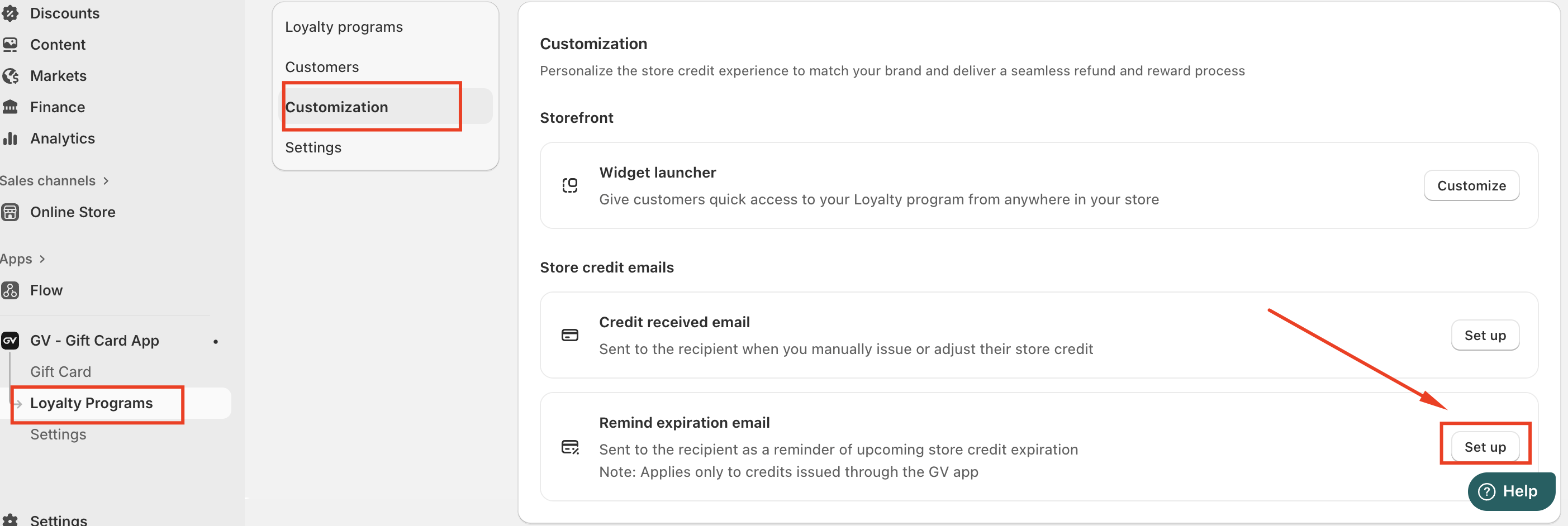
Go to Loyalty Programs--> Customization.
Scroll to Store Credit Emails.
Find Remind expiration email and click Set up.
Customize Email Content
Within the editor, you can update key email elements:
Reply-to email: Set the address customers can reply to.
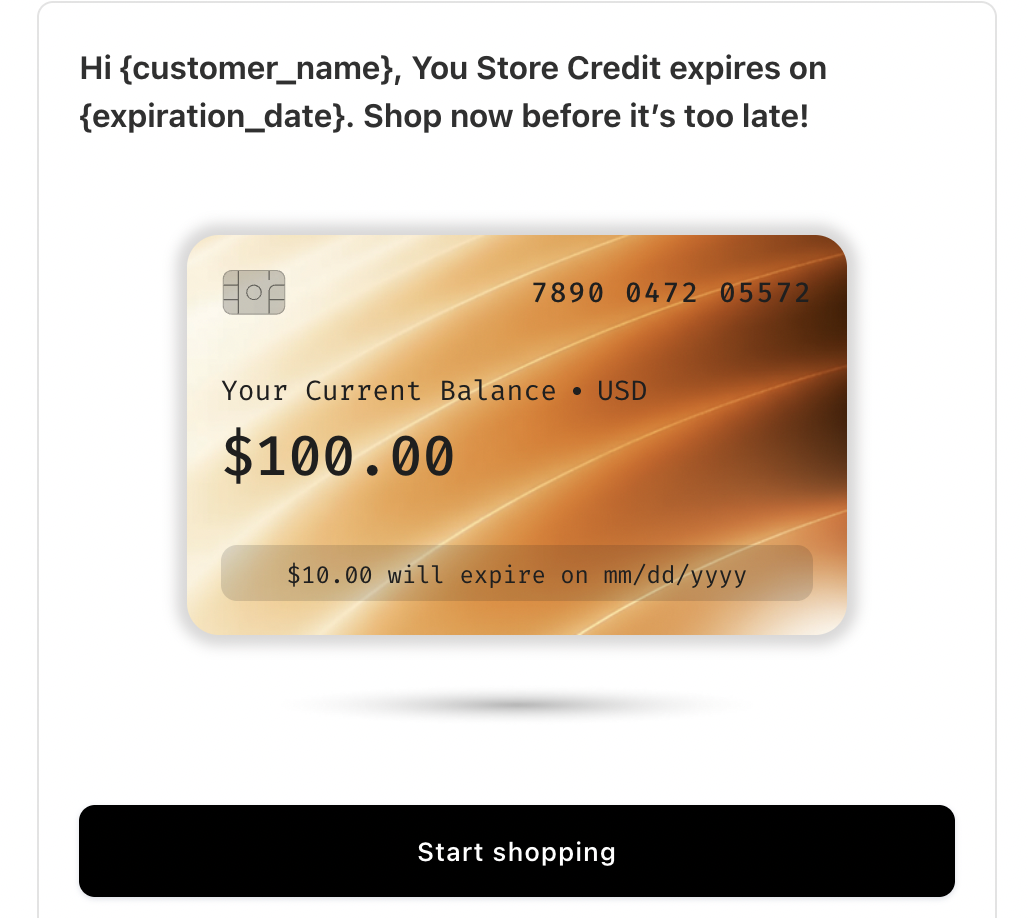
Email subject: Customize the subject line using supported variables such as
{store_name}.Main heading and message: Edit the headline and text shown in the email body.
Dynamic variables: Insert placeholders like
{customer_name},{expiration_date}, and{store_credit_expire}to display personalized data automatically.
Adjust Wallet and CTA Settings
Balance title: Customize how the store credit balance label appears.
Expiration message: Define how the expiration details are displayed.
CTA button text: Edit the call-to-action (for example, Start shopping), which directs customers back to your store.
Style and Color Settings
You can adjust basic styling options, including:
Light or Dark theme
Email background color
Text color
CTA button background and text color
These settings help ensure visual consistency with your brand.
Save Changes
Once customization is complete, click Save to apply the changes. The updated email will be sent automatically to customers when their store credit is nearing expiration.
In case you have any further concerns, please feel free to drop us an email at support@govalos.com
Was this article helpful?
That’s Great!
Thank you for your feedback
Sorry! We couldn't be helpful
Thank you for your feedback
Feedback sent
We appreciate your effort and will try to fix the article