The Credit Received Email is automatically sent to customers when you manually issue or adjust store credit for them. This email informs customers about the credit amount they have received, any expiration details, and how to use the credit on your store.
This article explains how to access and customize the Credit Received Email in the GV – Gift Card App.
How to Access the Credit Received Email Settings
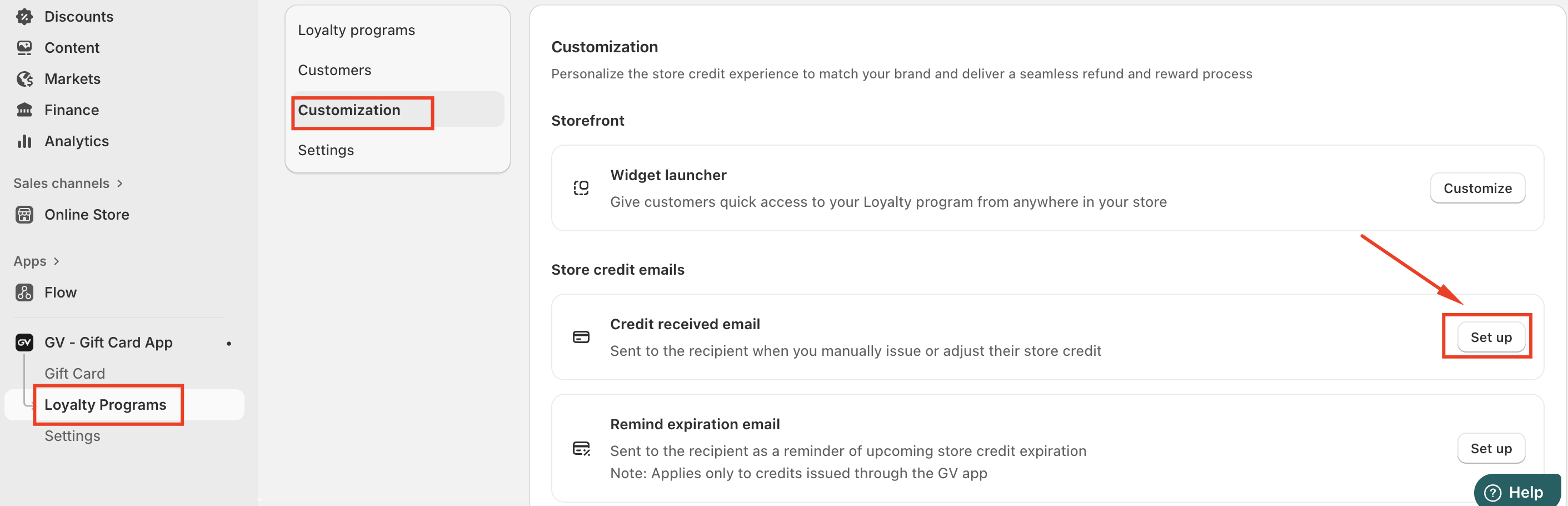
Go to Loyalty Programs from the left menu.
Click Customization.
Scroll to the Store Credit Emails section.
Find Credit received email and click Set up.
Customizing the Email Subject
The Email subject field controls the subject line customers see in their inbox.
You can edit the subject text directly.
Dynamic variables are supported, such as:
{credit_amount}{store_name}
Example subject:
You've just received {credit_amount} to spend at {store_name}!
A character counter is displayed to help keep the subject concise and readable.
Customizing Email Content
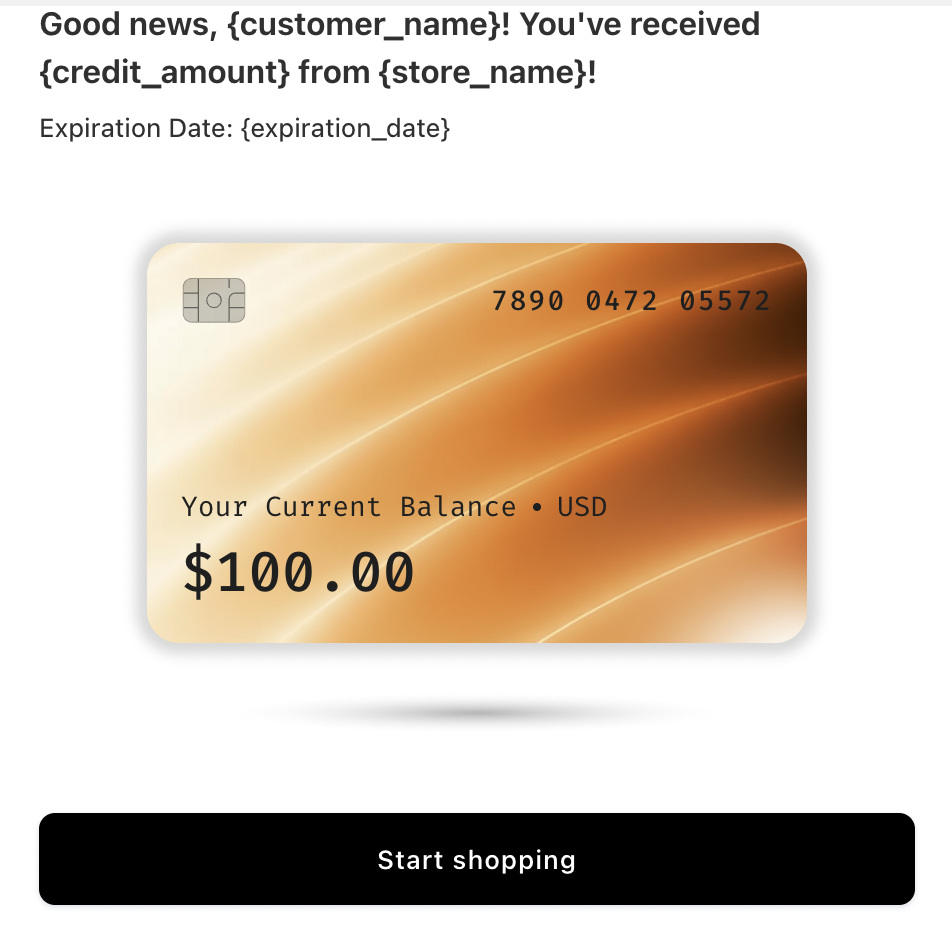
Within the editor, you can customize the main content of the email, including:
Heading text (e.g. a confirmation message to the customer)
Expiration information
Shows the expiration date if the credit expires
Displays a default message if the credit never expires
Usage instructions
Explains how customers can apply store credit at checkout
Wallet information
Displays the customer’s current store credit balance
CTA button
Customize the button label (for example: Start shopping)
All supported variables can be inserted using the provided variable buttons to ensure accurate, dynamic content.
Style and Color Settings
You can adjust the visual appearance of the email to match your brand, including:
Light or Dark style
Email background color
Text color
CTA button background and text colors
Changes are reflected instantly in the live preview panel.
Save and Apply Changes
Once customization is complete, save your changes.
All future Credit Received Emails sent from the GV app will use the updated design and content.
In case you have any further concerns, please feel free to drop us an email at support@govalos.com
Was this article helpful?
That’s Great!
Thank you for your feedback
Sorry! We couldn't be helpful
Thank you for your feedback
Feedback sent
We appreciate your effort and will try to fix the article