The VIP Tier system is designed to reward customers based on their engagement and spending. Each tier unlocks exclusive benefits, including credit multipliers that help customers earn rewards faster.
This guide explains how customer tiers work and how customers can check their current tier, view all tiers, and track related rewards.
1. How the VIP Tier System Works
Customers are automatically assigned to a tier based on the store’s configuration starting from the Program Start Date.
Key Rules:
Customers are divided into tiers according to the store’s setup.
Each tier has its own credit multiplier (x times).
When customers earn credit from other active programs (e.g., placing an order), the system multiplies the credit according to their current tier.
Customers may receive email notifications when they unlock a new tier (if enabled).
When the program resets:
Most customers return to the starting tier.
Customers in the highest tier will be downgraded to the tier directly below.
2. How Tier Credit Multiplier Works
Each VIP tier can apply a bonus multiplier to earned credit.
Example:
A customer earns $10 credit after placing an order.
If the customer belongs to the Platinum tier with a x3 multiplier, the credit will be calculated as:
Place order credit: $10
VIP tier bonus credit: $20
Total credit received: $30
This ensures higher-tier customers receive greater benefits.
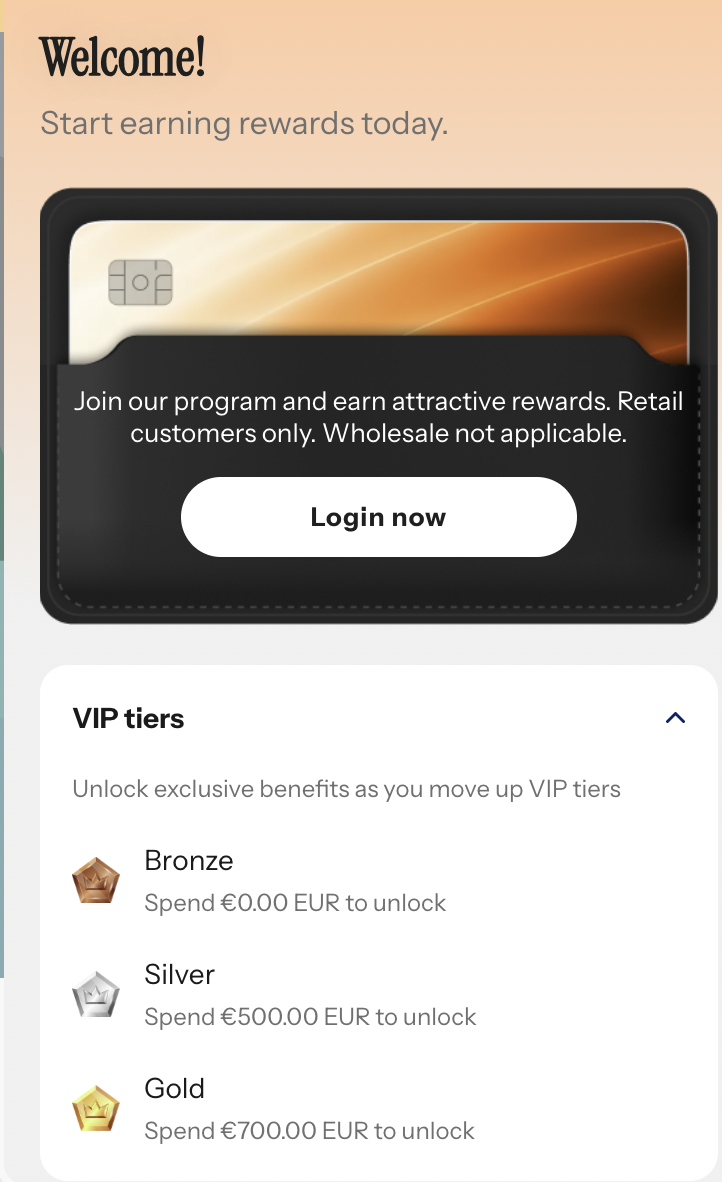
3. How to Check Tiers (Before Login)
If the customer has not logged in:
Open the Loyalty Widget.
Navigate to the VIP Tiers section.
All available tiers will be displayed.
Click on a specific tier to view detailed rewards and requirements.
Customers can see:
Tier name (Bronze, Silver, Gold, etc.)
Spending requirement to unlock
Credit multiplier benefits
Other exclusive rewards
This allows customers to understand the program structure before joining or signing in.
4. How to Check Your Current Tier (After Login)
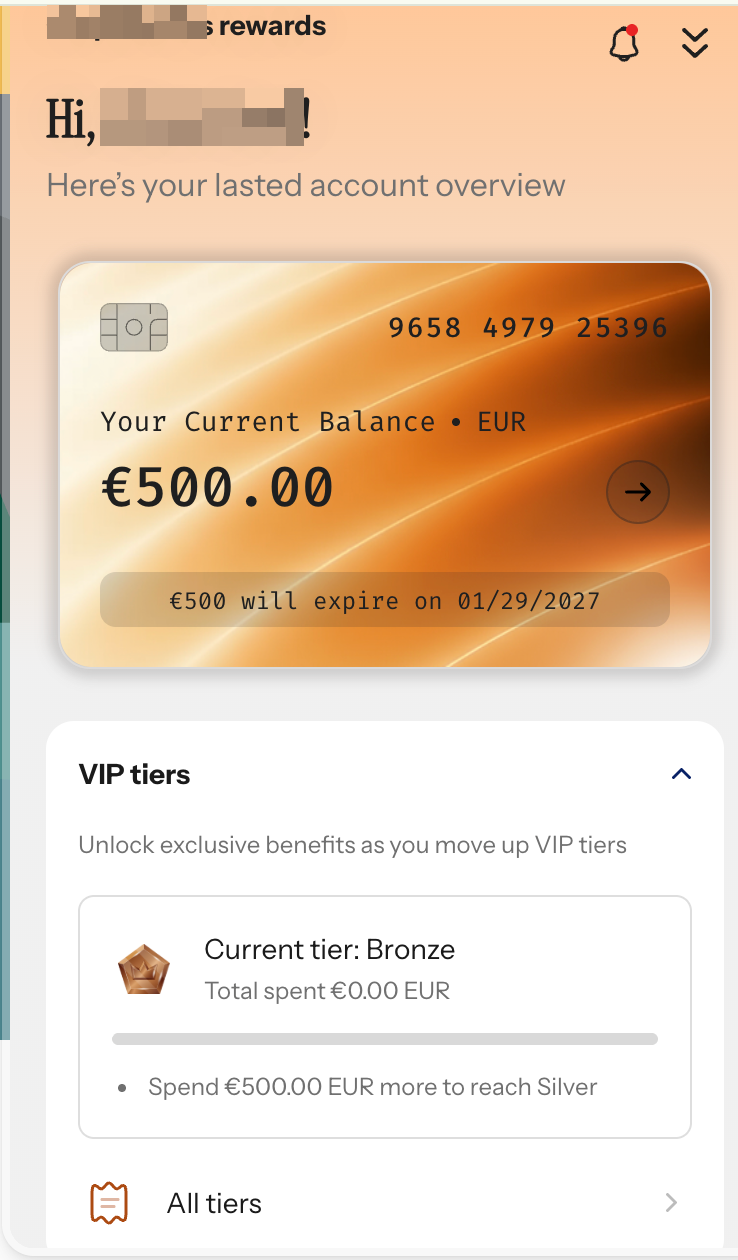
Once logged in, customers can easily check their tier status.
Steps:
Open the Loyalty Widget.
Go to the VIP Tiers section.
The system will display:
Current tier
Total spending
Remaining amount needed to unlock the next tier
Customers can also click “All tiers” to:
View the full tier structure
Compare benefits
Open detailed information for each tier
The current tier will be clearly highlighted.
5. Tier Unlock Notifications
When a customer unlocks a new tier:
A notification appears in the Launcher/Notification Center.
The customer can click the notification to view tier details.
An email notification may also be sent (if enabled in settings).
If the program ends and tiers are reset, customers will also receive a notification informing them of the update.
6. Bonus Credit Notifications
When customers earn credit with a tier multiplier:
The notification will clearly display:
Base credit (e.g., Place an order: $10)
VIP tier bonus credit (e.g., Silver bonus: $20)
Total credit earned
If the tier multiplier is x1, no bonus credit is applied, and the bonus breakdown will not be shown.
7. Viewing Earn History
Customers can review earned credit details inside their account.
Each earn record includes:
Date
Type (Received)
Origin (e.g., VIP tiers bonus credit)
Amount earned
Remaining balance
Expired date (based on VIP tier settings)
Internal note (if applicable)
This provides full transparency into how rewards were calculated and applied.
8. Credit Received Email
When customers earn credit, a Credit Received Email may be sent according to the store’s configuration.
The email includes:
Total credit earned
Order reference (if applicable)
Breakdown of base and bonus credit
Updated balance
In case you have any further concerns, please feel free to drop us an email at support@govalos.com
Was this article helpful?
That’s Great!
Thank you for your feedback
Sorry! We couldn't be helpful
Thank you for your feedback
Feedback sent
We appreciate your effort and will try to fix the article