You can easily check which VIP tier a customer belongs to directly from the Loyalty Programs section in the GV – Gift Card App.
Follow the steps below to view a customer’s current tier status.
Step 1: Open Loyalty Programs
Go to GV – Gift Card App
Click Loyalty Programs
Select Customers
You will see a list of all customers enrolled in your loyalty program.
Step 2: Locate the Customer
You can find a customer in two ways:
Option 1: Use the Search Bar
Enter the customer’s name or email address
The system will instantly filter the results
Option 2: Scroll Through the List
Browse the customer table manually.
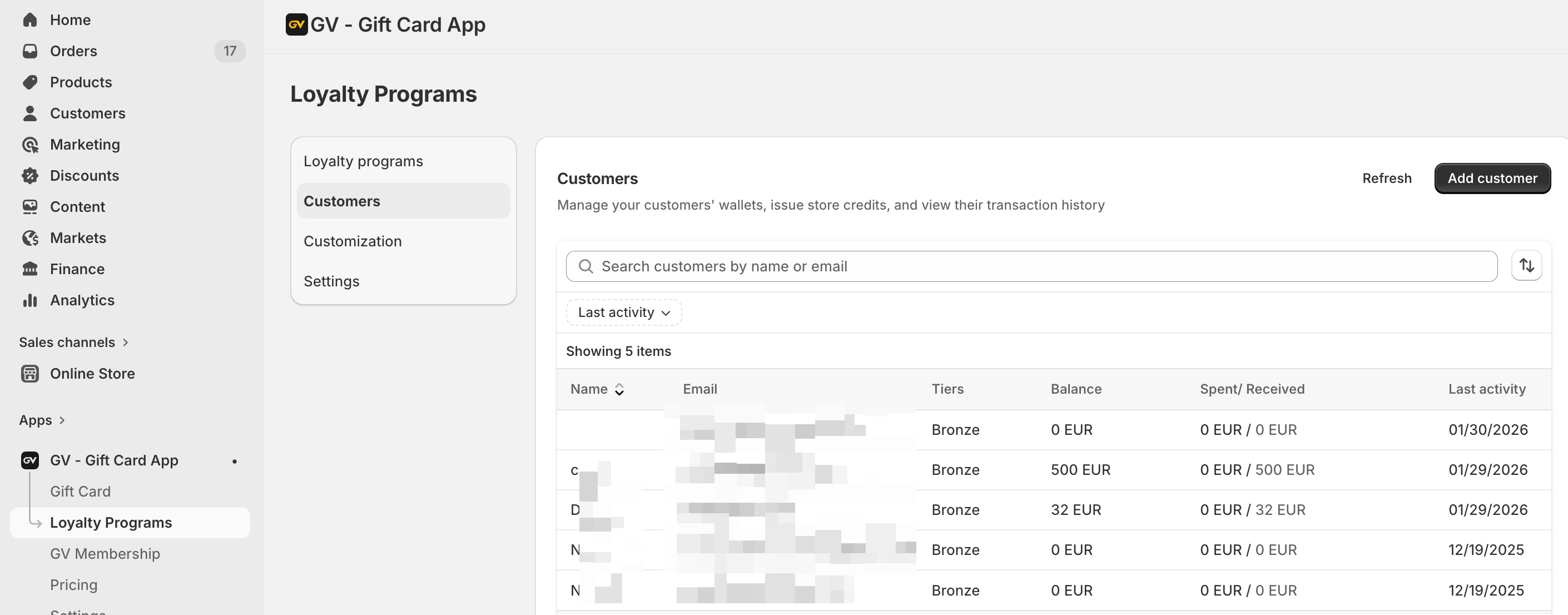
Step 3: Check the “Tiers” Column
In the customer list, look at the “Tiers” column.
This column shows the customer’s current VIP level, such as:
Bronze
Silver
Gold
Or any custom tier you have created
The displayed tier reflects the customer’s qualification based on your loyalty program rules (e.g., money spent or credit earned).
Viewing Tier Details
To see more information:
Click on the customer’s name
Review their profile, including:
Current VIP tier
Store credit balance
Transaction history
Spending activity
In case you have any further concerns, please feel free to drop us an email at support@govalos.com
Was this article helpful?
That’s Great!
Thank you for your feedback
Sorry! We couldn't be helpful
Thank you for your feedback
Feedback sent
We appreciate your effort and will try to fix the article