When a customer reaches a new VIP tier, the app automatically sends a VIP Tiers Announcement Email to notify them about their upgrade and unlocked benefits.
This article explains how to customize the email content, variables, CTA button, and design to match your brand.
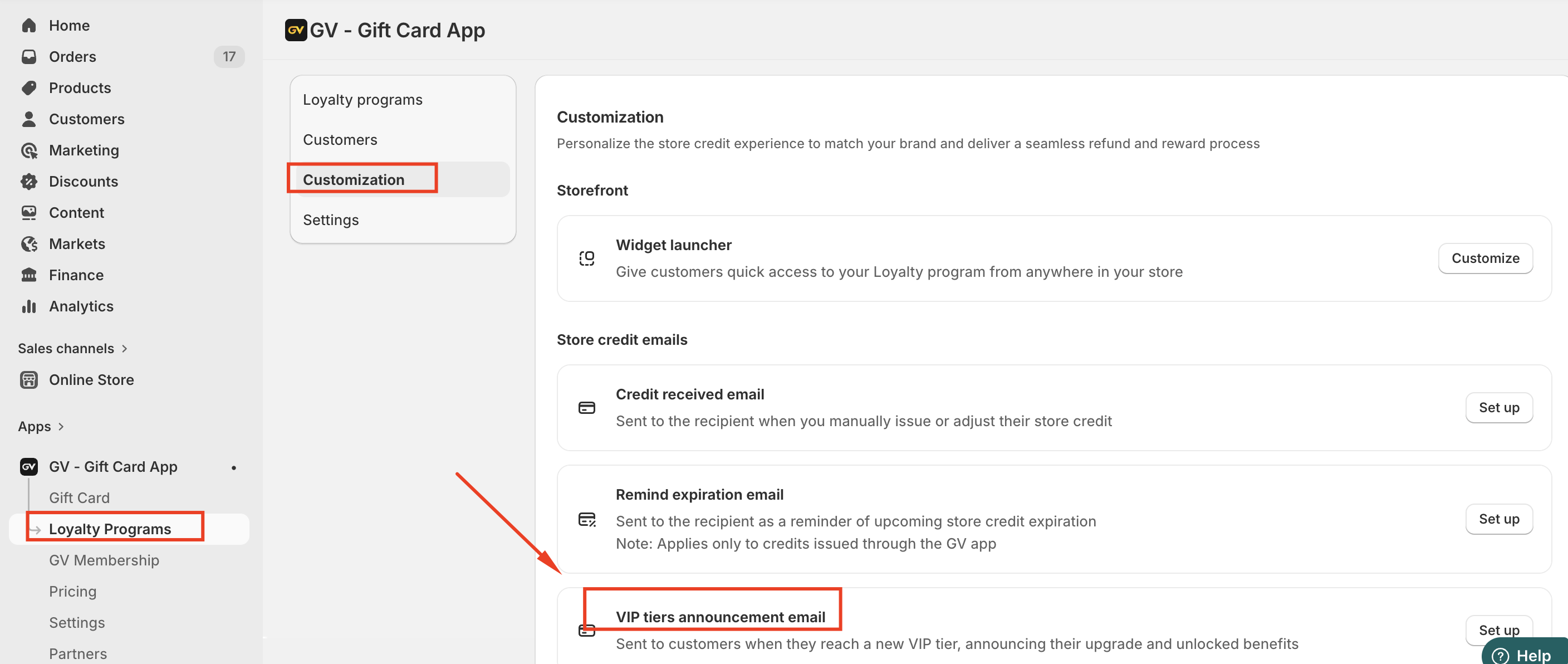
Where to Find This Setting
Go to GV – Gift Card App
Click Loyalty Programs
Select Customization
Scroll to VIP tiers announcement email
Click Set up
Email Customization Overview
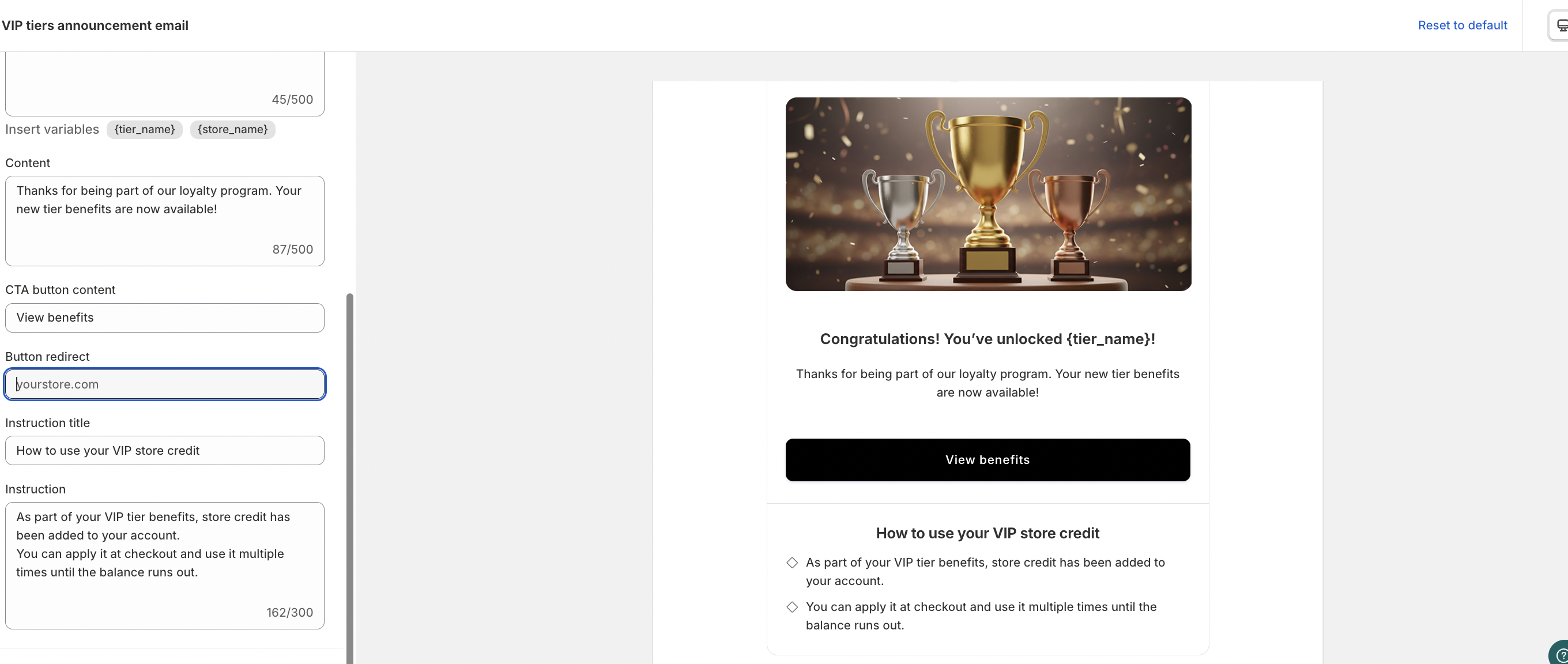
The VIP announcement email is divided into the following sections:
Email Header
Main Content
CTA Button
Instruction Section
Color Settings
Each section can be customized as explained below.
1. Email Header
Reply-to Email
Enter the email address where customers can reply if they have questions about their VIP tier or benefits.
Email Subject
This is the subject line customers will see in their inbox.
Default example:
Congratulations! You just unlocked the {tier_name}
You can insert dynamic variables:
{store_name}– Displays your store name{tier_name}– Displays the VIP tier name the customer unlocked
Example:
Welcome to {tier_name} at {store_name}!
2. Main Content
Heading
This is the main title inside the email.
Default example:
Congratulations! You’ve unlocked {tier_name}!
You can personalize it using available variables.
Content
This is the body message of the email.
Default example:
Thanks for being part of our loyalty program. Your new tier benefits are now available!
You can use this section to:
Thank customers
Highlight key VIP benefits
Encourage them to shop again
Explain what has changed in their account
Keep the message clear and benefit-focused.
3. CTA (Call-to-Action) Button
CTA Button Content
This is the text displayed on the button.
Default example:
View benefits
Other suggestions:
Explore your rewards
Shop now
See VIP perks
Button Redirect
Enter the URL where customers will be redirected after clicking the button.
Examples:
Your homepage
Loyalty program page
VIP benefits landing page
Special collection page
Example:
https://yourstore.com/pages/vip-benefits
4. Instruction Section
This section explains how customers can use their VIP benefits (such as store credit).
Instruction Title
Default example:
How to use your VIP store credit
Instruction Content
Default example:
As part of your VIP tier benefits, store credit has been added to your account.
You can apply it at checkout and use it multiple times until the balance runs out.
You may customize this to:
Explain how store credit works
Mention expiration (if applicable)
Clarify usage rules (e.g., can be combined with discount codes)
Example expanded version:
Your VIP store credit is automatically saved to your account.
You can apply it at checkout, combine it with discount codes, and use it across multiple orders until the balance reaches zero.
5. Color Settings
You can adjust the CTA button colors to match your brand identity.
CTA Background Color
Choose your brand’s primary color.
CTA Text Color
Ensure good contrast for readability (e.g., white text on dark background).
In case you have any further concerns, please feel free to drop us an email at support@govalos.com
Was this article helpful?
That’s Great!
Thank you for your feedback
Sorry! We couldn't be helpful
Thank you for your feedback
Feedback sent
We appreciate your effort and will try to fix the article