When customers shop on your store using a gift card, it’s important that they can easily check how much balance remains before or after making a purchase. Enabling a gift card balance check page improves the customer experience and reduces confusion during checkout.
Follow the steps below to set up and customize the gift card balance check feature.
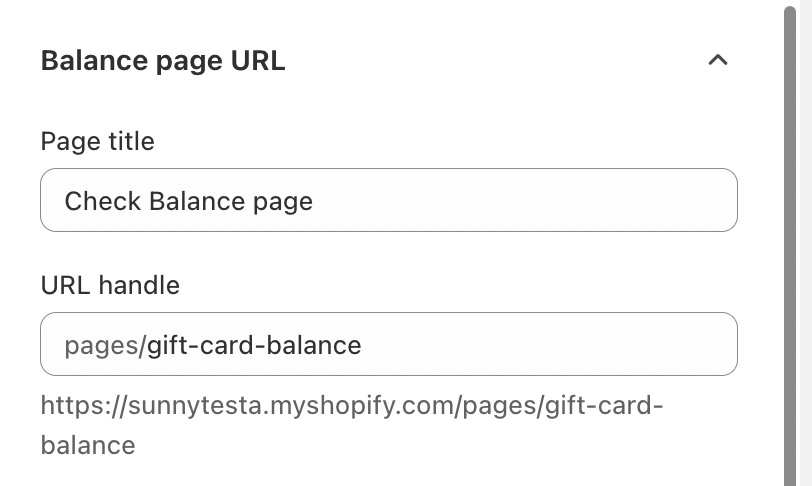
Customize the Gift Card Balance Check URL
You can customize the gift card balance check URL to match your store’s structure or branding. This is the page where customers will enter their gift card code to view the remaining balance.
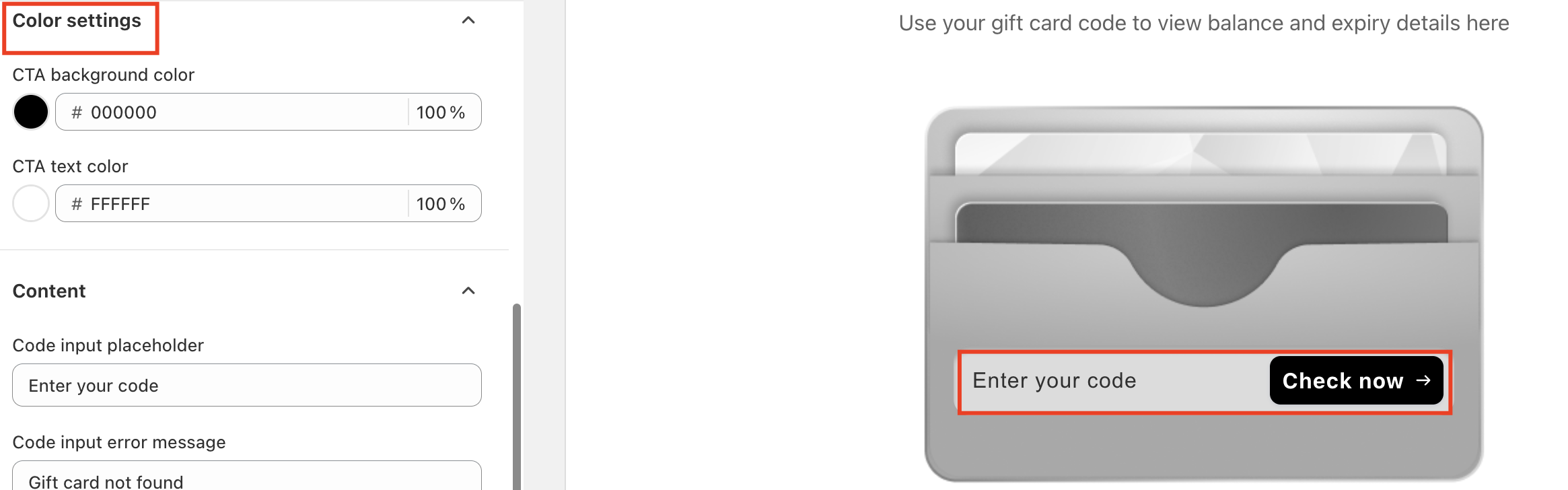
Customize the CTA
To align the page with your store theme, you can:
Set the CTA background color
Customize the CTA text color
Choosing the right colors helps ensure the button is clear, accessible, and visually consistent with your storefront.
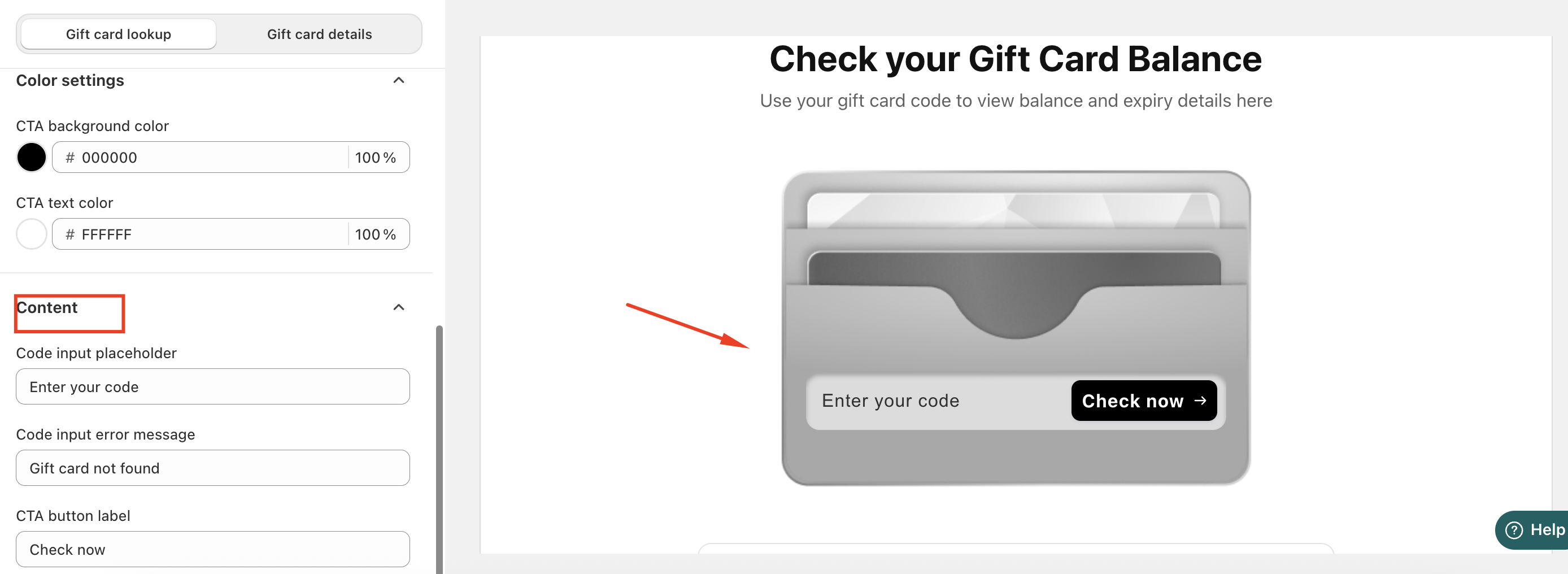
Manage Balance Check Page Content
You can customize the content shown on the gift card balance check page, including:
Instructional text that guides customers on how to enter their gift card code
Messaging displayed when an invalid or incorrect code is entered
Clear instructions and error messages help customers quickly resolve issues and continue shopping.
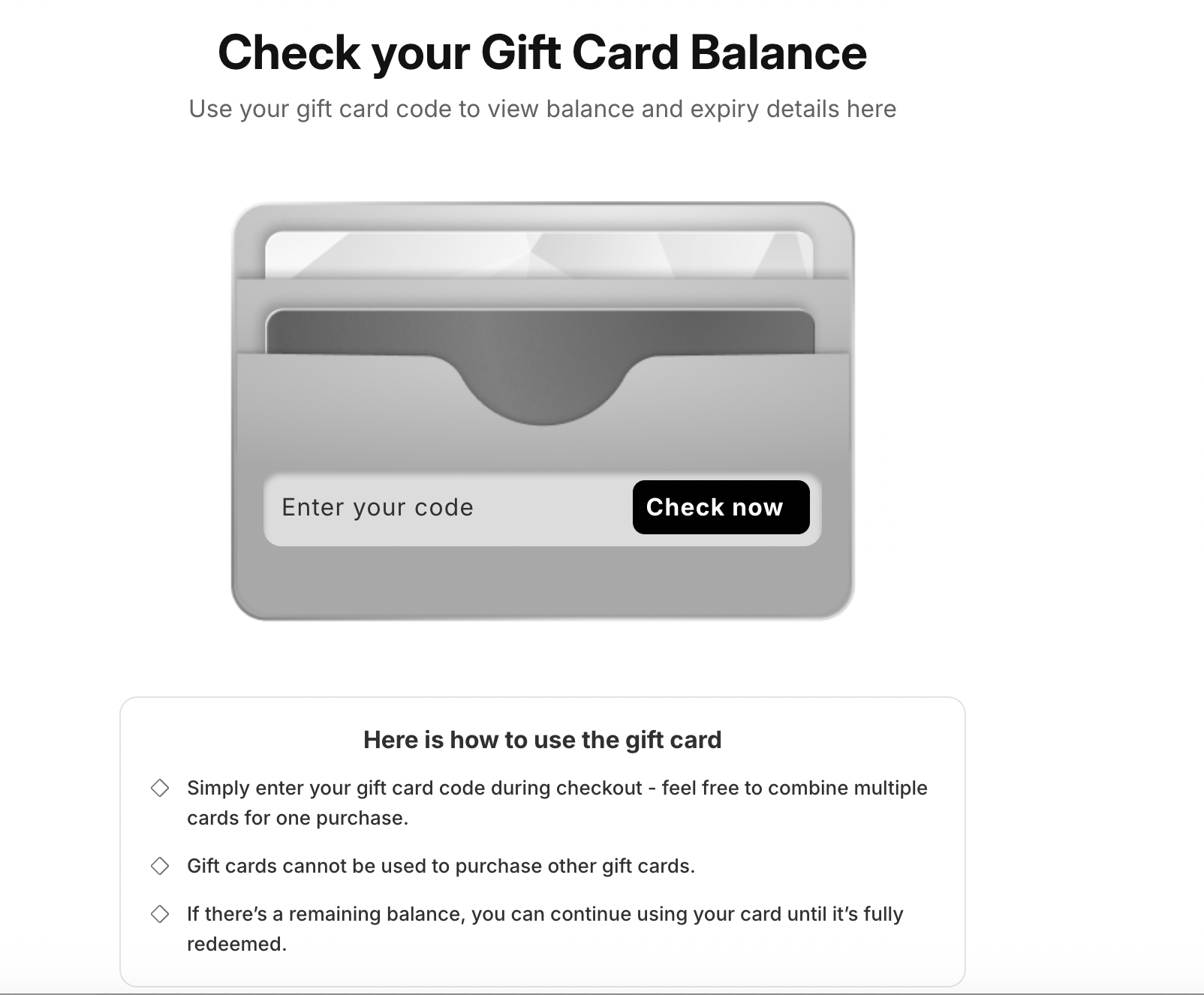
Preview the Balance Check Page
Once these steps are completed, the gift card balance check page will be visible on your storefront. Customers can enter their gift card code to instantly view their available balance.
In case you have any further concerns, please feel free to drop us an email at support@govalos.com
Was this article helpful?
That’s Great!
Thank you for your feedback
Sorry! We couldn't be helpful
Thank you for your feedback
Feedback sent
We appreciate your effort and will try to fix the article