The Loyalty Program is designed to help merchants reward customers for their purchases and build long-term engagement. Below is an overview of how the loyalty program is set up and how it works in practice, from the merchant’s perspective to the customer experience.
Activating the Loyalty Programs
To get started, merchants need to activate the loyalty program within the app:
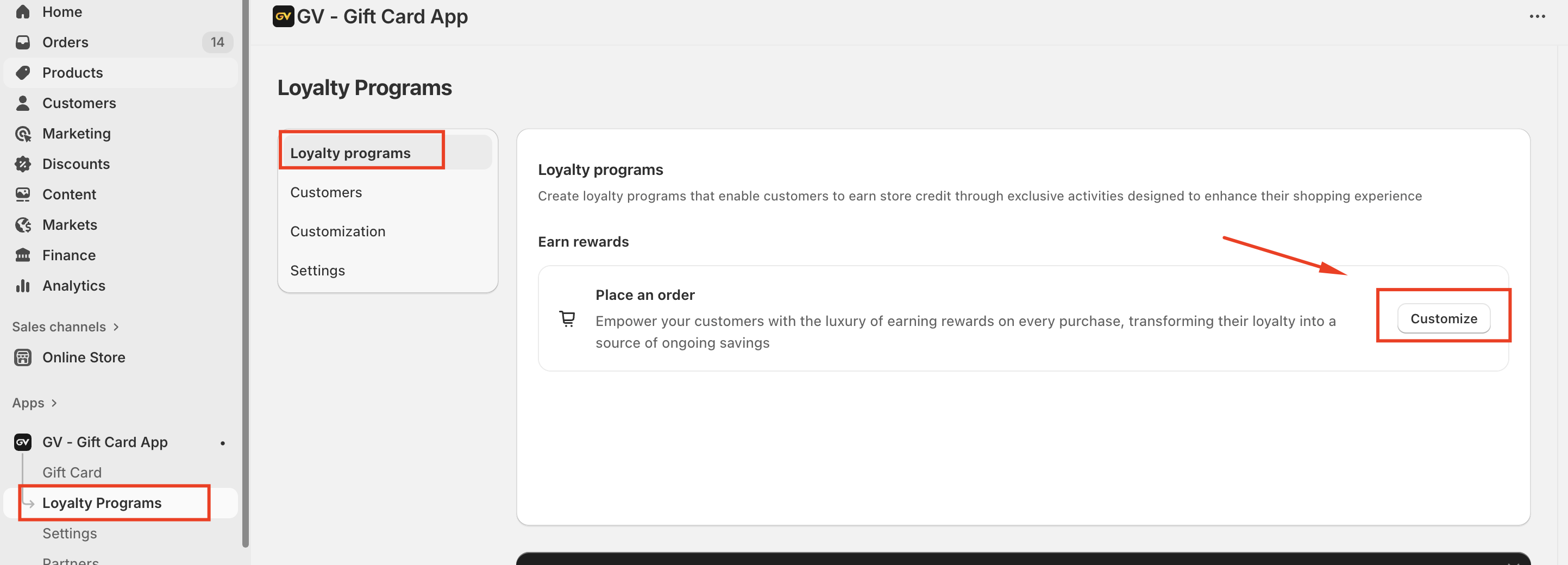
Navigate to Loyalty Programs → Loyalty Programs in the app dashboard.
Configure the loyalty rules based on purchasing activities, such as rewarding customers with store credit when they place an order.
Click Save Settings to activate the program.
Once saved, information about the loyalty program will automatically be displayed on the Launcher in the storefront, allowing customers to clearly see how they can earn and use store credit.
Customer Purchase and Credit Earning
After the loyalty program is activated:
A customer completes a purchase successfully on the store.
The system automatically calculates and issues the corresponding store credit based on the loyalty rules you’ve set.
The customer receives an email notification informing them of the credit they have earned.
This seamless flow ensures customers are immediately aware of their rewards, encouraging repeat purchases.
Managing Customers
Merchants can manage all customer-related information directly within the app:
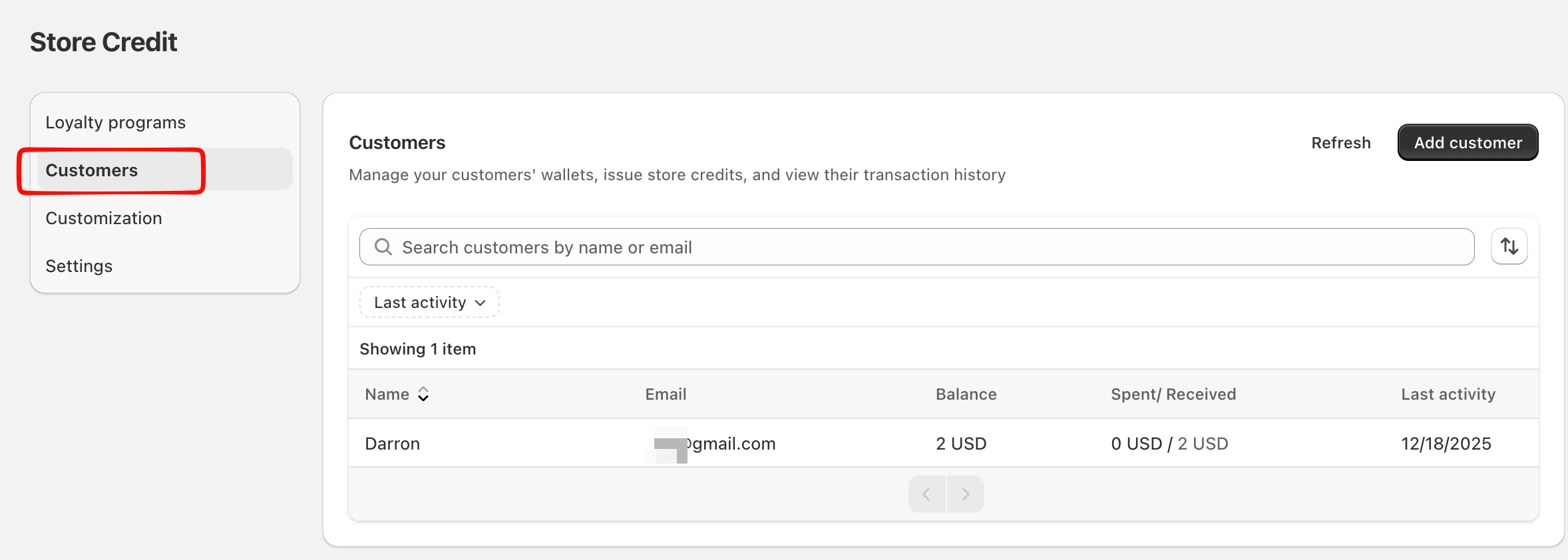
Go to the Customers tab to view customer profiles.
Track earned, stored, and redeemed store credits for each customer.
Manually manage or review customer activity related to the loyalty program as needed.
Summary
By enabling the Loyalty Programs, merchants can easily reward customers for their purchases, communicate rewards transparently through the storefront launcher and email notifications, and manage all customer credit activity in one place. This creates a smooth loyalty experience that drives engagement, repeat purchases, and long-term customer value.
If you have any further questions or need assistance setting up your loyalty program, please feel free to contact us at support@govalos.com.
Was this article helpful?
That’s Great!
Thank you for your feedback
Sorry! We couldn't be helpful
Thank you for your feedback
Feedback sent
We appreciate your effort and will try to fix the article