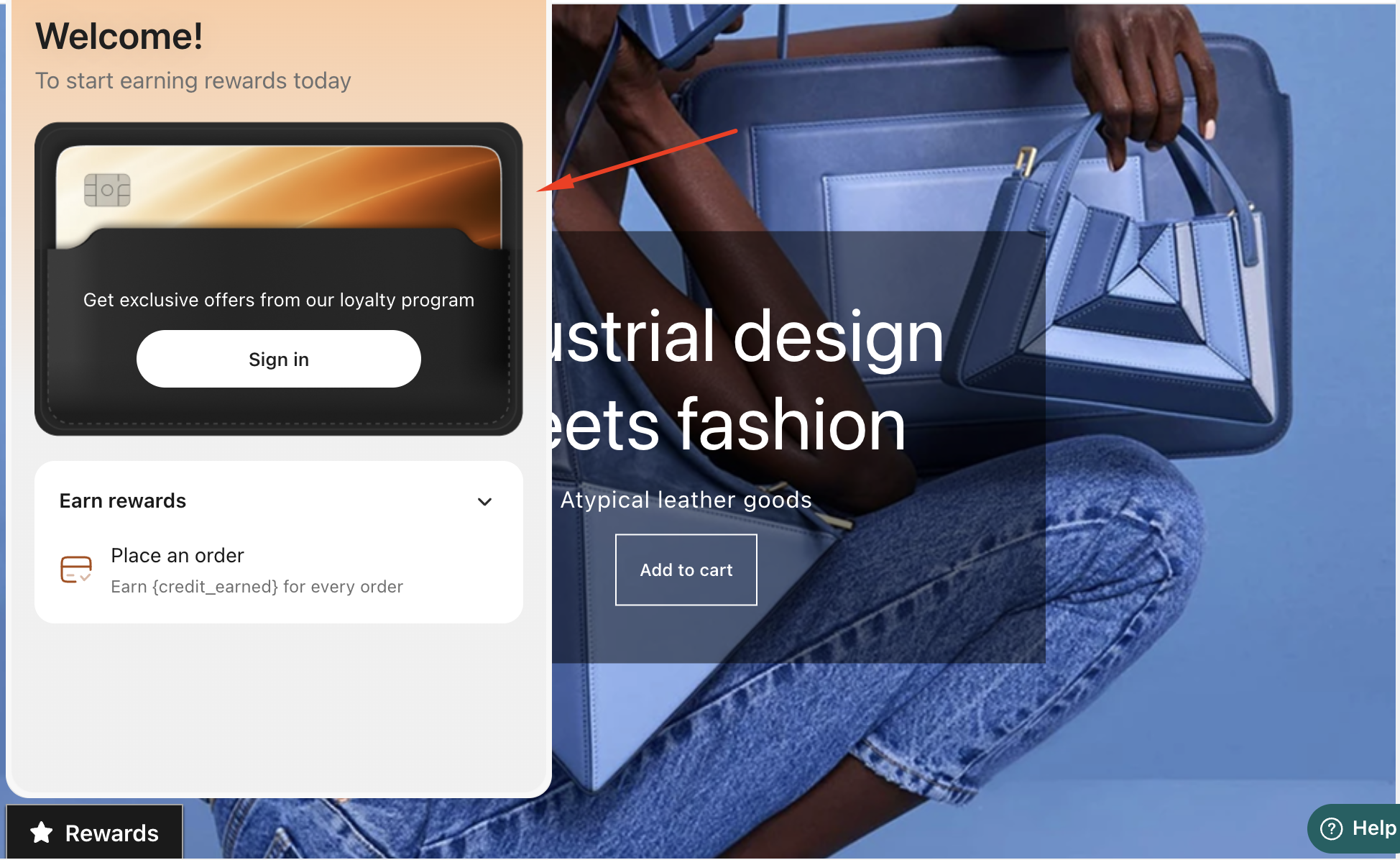
The Widget Launcher allows customers to quickly access your loyalty program from anywhere on your storefront. By customizing the launcher, you can ensure the experience aligns with your brand while clearly communicating the benefits of joining and earning store credits.
This guide walks you through how to enable and customize the launcher, including settings for both visitors and logged-in customers.
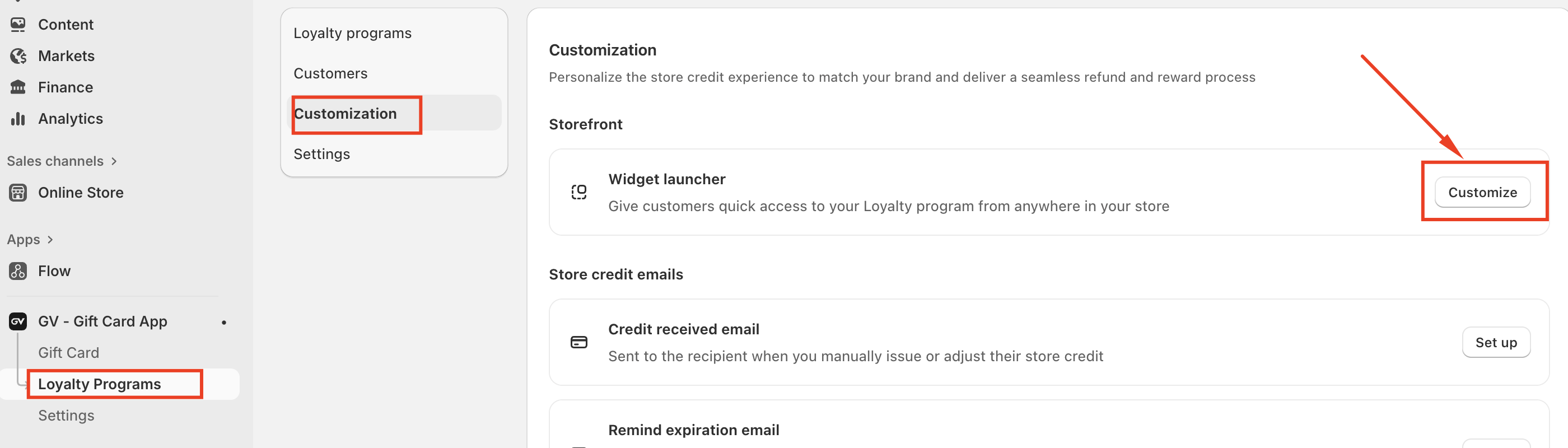
Accessing the Launcher Customization Settings
To begin customizing the Store Credit Launcher:
- Navigate to Loyalty Programs
- Select Customization.
- Under the Storefront section, find Launcher on store.
- Click Customize to open the launcher settings.
Enable the Widget Launcher
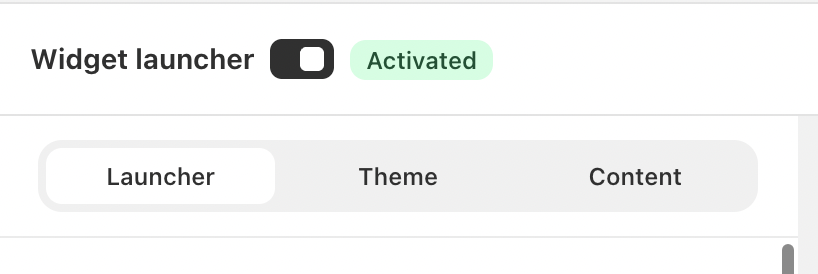
At the top of the customization page, make sure the Launcher widget is activated.
Once enabled, the launcher will appear on your storefront based on the placement settings you configure.
In case you have any further concerns, please feel free to drop us an email at support@govalos.com
Was this article helpful?
That’s Great!
Thank you for your feedback
Sorry! We couldn't be helpful
Thank you for your feedback
Feedback sent
We appreciate your effort and will try to fix the article