The GV – Gift Card App allows you to fully customize the widget launcher so it matches your store’s branding and provides a seamless experience for your customers. You can choose a widget theme and adjust colors to make the widget visually appealing and consistent with your storefront.
This article explains how to access the widget launcher settings and customize its appearance.
Accessing the Widget Launcher Customization
To begin customizing the widget launcher:
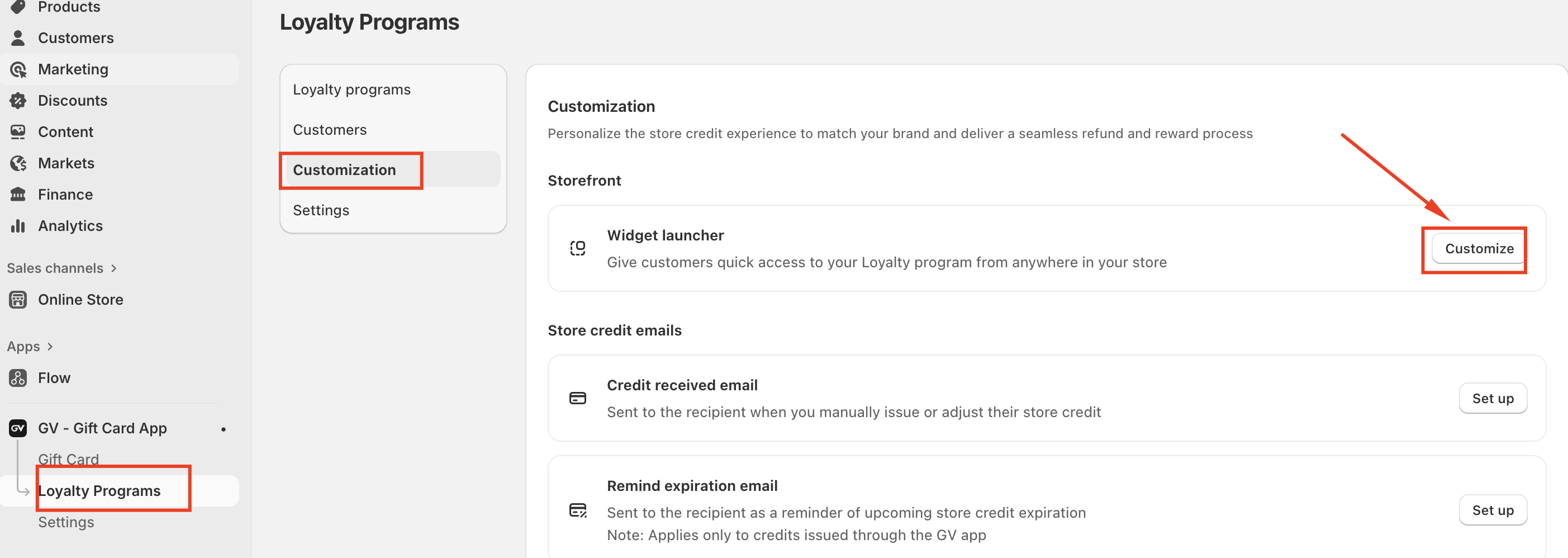
Navigate to Loyalty Programs.
Click Customization.
Locate Widget launcher under the Storefront section.
Click Customize.
This will open the widget customization interface.
Selecting a Widget Theme
Once inside the customization page:
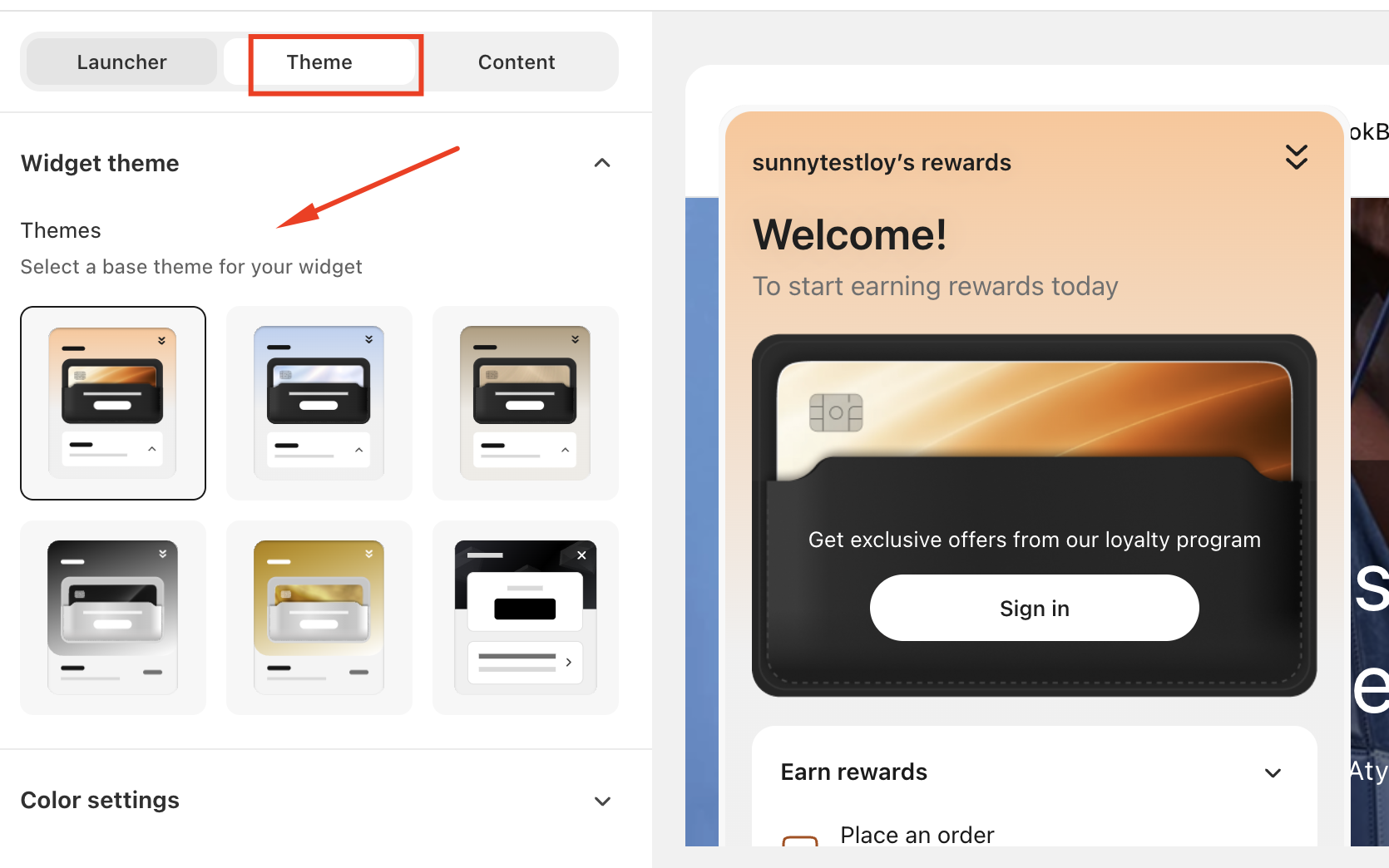
Switch to the Theme tab.
Browse through the available widget themes.
Select the theme that best fits your store’s design.
The preview panel will update automatically so you can see how the widget will appear on your storefront.
Customizing Widget Colors
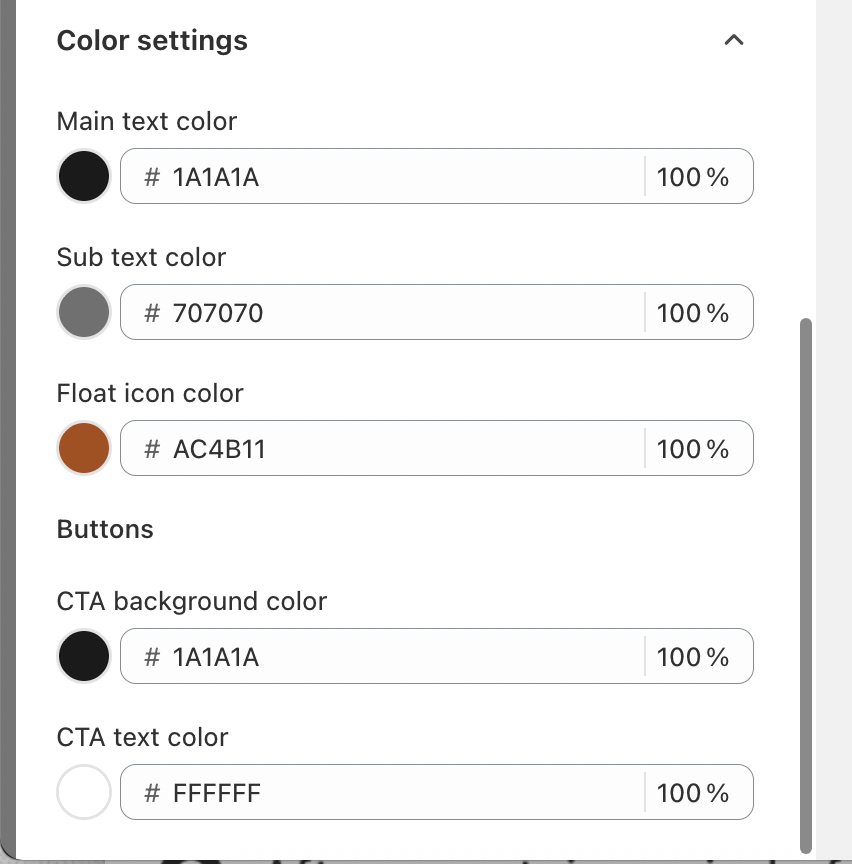
In addition to selecting a theme, you can customize the widget’s colors to better align with your brand:
Main text color – Controls the primary text inside the widget
Sub text color – Controls secondary text
Float icon color – Controls the color of the widget launcher icon
CTA background color – Controls the background color of buttons
CTA text color – Controls the text color inside buttons
Adjust these colors as needed, and the preview will reflect your changes in real time.
Saving Your Changes
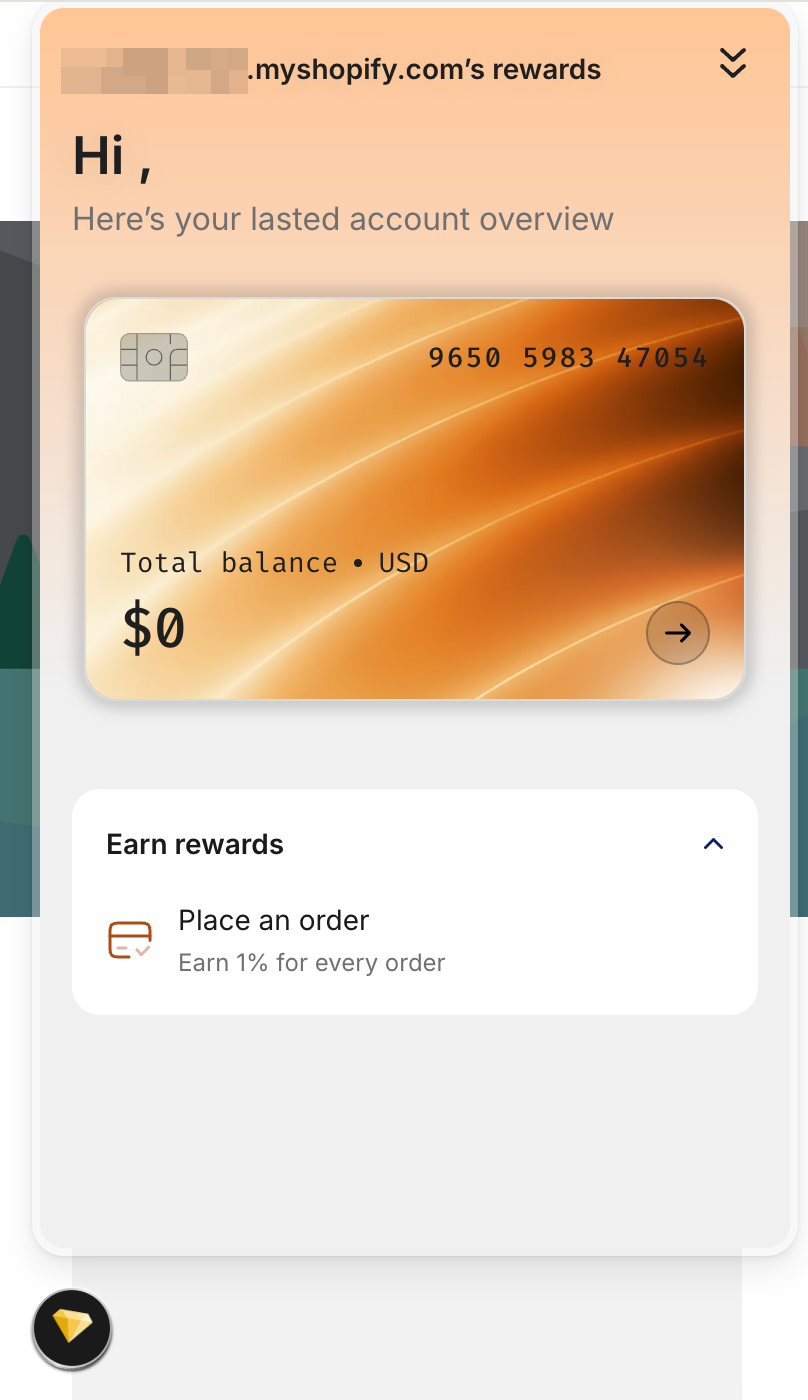
After selecting your preferred theme and color settings, make sure to save your changes. The updated widget launcher will then be displayed on your storefront for customers to access the loyalty program.
Should you need any further assistance, please do not hesitate to contact us at support@govalos.com
Was this article helpful?
That’s Great!
Thank you for your feedback
Sorry! We couldn't be helpful
Thank you for your feedback
Feedback sent
We appreciate your effort and will try to fix the article