The Celebrate a Birthday feature allows you to reward customers with store credit on their birthday. This program helps strengthen customer relationships, encourage engagement, and create a memorable shopping experience.
This article explains how the birthday reward works, how customers earn credit, and how the feature appears on the storefront.
1. Overview
The Celebrate a Birthday program automatically rewards customers with store credit when their birthday arrives, provided they meet the store’s eligibility requirements.
Key highlights of the program:
Customers receive a birthday reward once per year
Merchants can configure:
Credit amount
Credit expiration
Birthday validation period
Customers must submit their birthday in advance to qualify for the reward
2. How the Birthday Credit Flow Works
Below is the full process of how customers earn birthday credit.
Step 1: Merchant Enables the Program
Once the merchant activates the Celebrate a Birthday program, it becomes visible in the Loyalty Launcher on the storefront.
Customers can view the birthday reward as part of the loyalty activities.
Step 2: Customer Submits Their Birthday
Customers enter their birthday through the Launcher interface.
Once submitted:
The birthday is saved in the Customers list
The birthday is displayed in the Launcher UI
Customers can edit their birthday if needed
Step 3: Birthday Validation Period
Customers must submit their birthday at least X days before their birthday, depending on the merchant’s configuration.
Example:
Merchant sets 30 validation days
Today: Nov 28
Customer enters birthday: Nov 30
Since the birthday is less than 30 days away, the customer will not receive the reward this year and must wait until Nov 30 next year.
However:
If the customer enters birthday Jan 1, they will receive the reward on Jan 1 of the same year.
Step 4: Credit is Granted on Birthday
When the customer’s birthday arrives and they meet all requirements:
Store credit is automatically added to the customer account
The activity is recorded in:
Launcher Activity tab
Notifications
Customers in-app records
Customers will also receive a credit notification.
3. Earn History Record
When birthday credit is issued, it will appear in the earn history with the following information:
| Field | Description |
|---|---|
| Date | Customer signup date |
| Type | Received |
| Event | Adjustment |
| Origin | Birthday |
| Amount | Credit earned |
| Balance | Remaining credit balance |
| Expired date | Based on the program expiration setting |
| Internal note | Optional note entered by the merchant |
This allows merchants to easily track reward activities and credit usage.
4. Important Rules
The birthday program follows these rules:
Each customer can receive birthday credit once per year
If a customer changes their birthday, they cannot receive another reward unless one year has passed since the previous reward
Credit expiration follows the expiration settings configured in the program
5. Customer Email Notification
When customers receive their birthday credit:
A Credit Received email is automatically sent
The email content follows the store’s configured email settings
This ensures customers are informed about their reward and encourages them to visit the store.
6. Storefront Experience
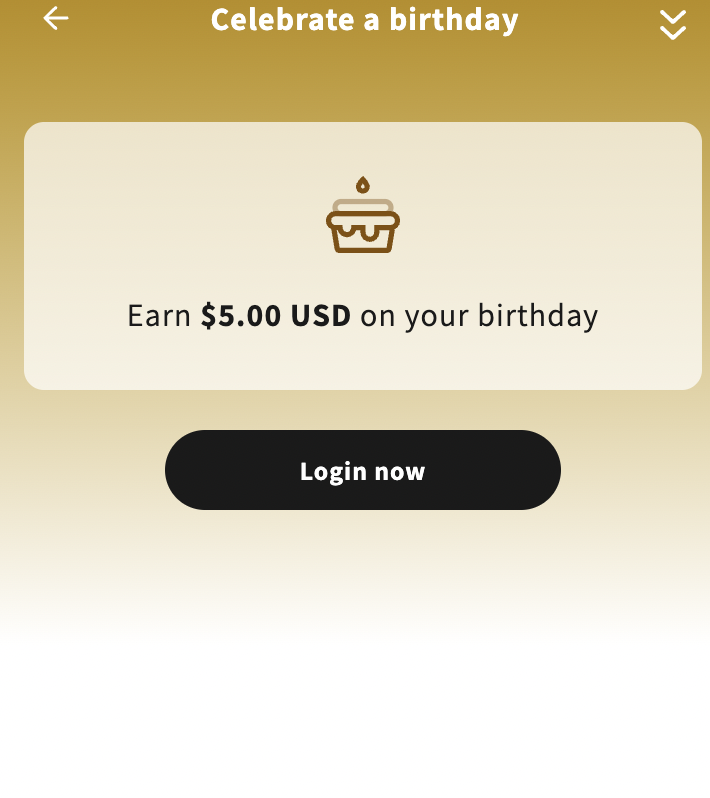
Guest Page
When a guest user opens the loyalty launcher:
They will be asked to log in to join the program
The birthday reward will be visible but requires authentication
Once logged in, they can participate in the birthday reward program.
Dashboard View
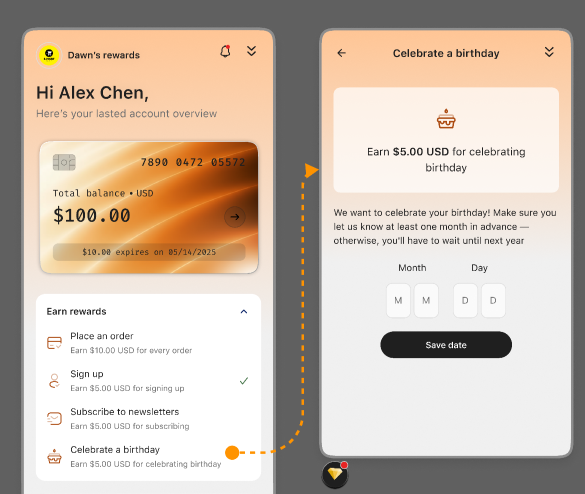
Inside the loyalty dashboard, customers can:
Click the Celebrate a Birthday program
View program details and conditions
Submit their birthday
Entering a Birthday
Customers will:
Select Month
Select Day
Click Save date
After saving:
The Save date button becomes a confirmation check
The birthday is stored in the system
Editing Birthday
Customers can update their birthday if necessary:
Click the birthday field
Edit the date
Click Save date again
The new date will be stored and used for future birthday rewards.
7. Receiving the Birthday Reward
When the customer's birthday arrives:
They will receive a successful reward notification
The credit will appear in their balance
Customers can view the reward in:
Notifications
A message confirms the birthday reward has been issued.
My Activity
The activity log shows:
Reward source: Birthday
Credit amount received
Updated balance
This helps customers track their rewards and spending history.
In case you have any further concerns, please feel free to drop us an email at support@govalos.com
Was this article helpful?
That’s Great!
Thank you for your feedback
Sorry! We couldn't be helpful
Thank you for your feedback
Feedback sent
We appreciate your effort and will try to fix the article