GV integrates with Shopify POS to help you sell gift cards, allow points earning on in-store purchases and spend customers’ points on loyalty discounts in your physical stores. This guide explains the requirements and how to set up Shopify POS to work with GV.
Before you start
To use GV with Shopify POS, your store must have the following setup:
* Shopify POS sales channel installed
* At least one POS location activated
* POS staff and devices set up
* Gift card enabled as a payment method in POS settings
* Store credit enabled for customer accounts
* Network and firewall settings allow Shopify POS to connect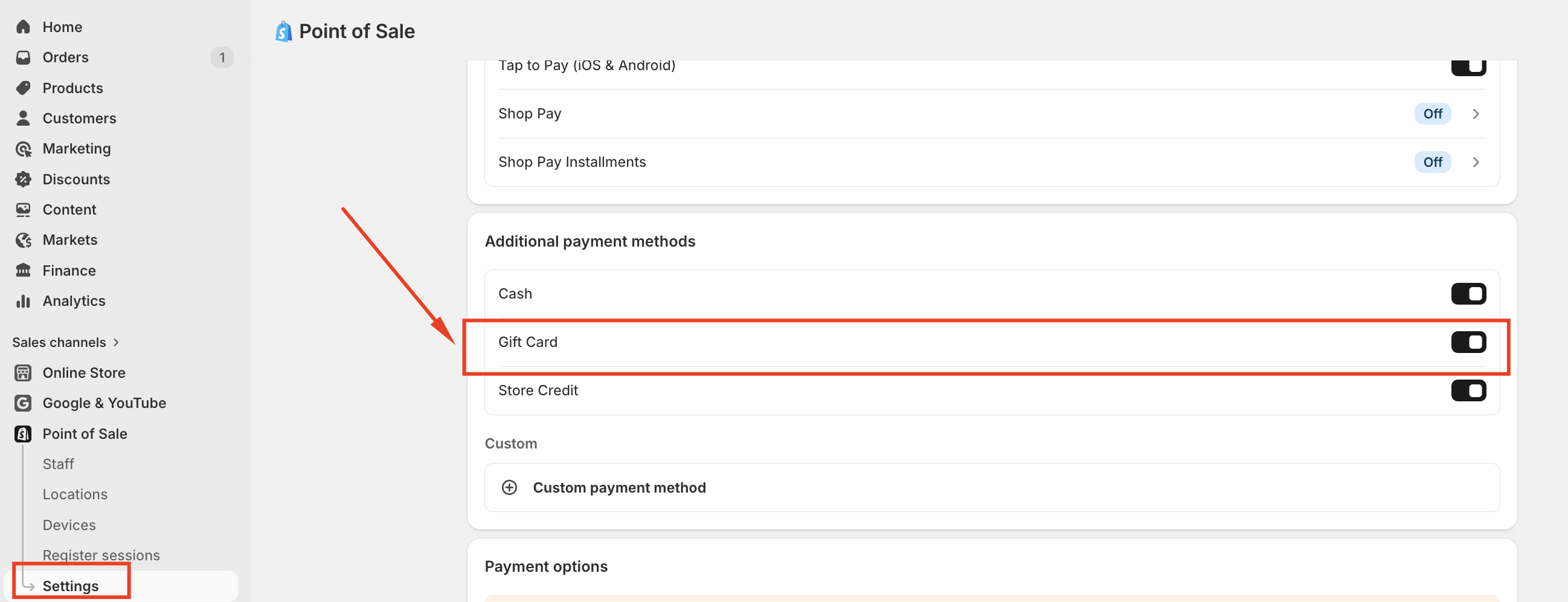
If any of the above is missing, Shopify POS features may not work as expected.
Important: GV requires the latest version of Shopify POS to be installed on your device.
Add GV to Shopify POS mobile app
To allow staff to access GV from Shopify POS, you need to add GV as an app tile.
1. Open Shopify POS Admin
2. Go to Add tile → App
3. Select GV
4. Add the GV app web
5. On the POS home screen, tap the GV tile to open GV
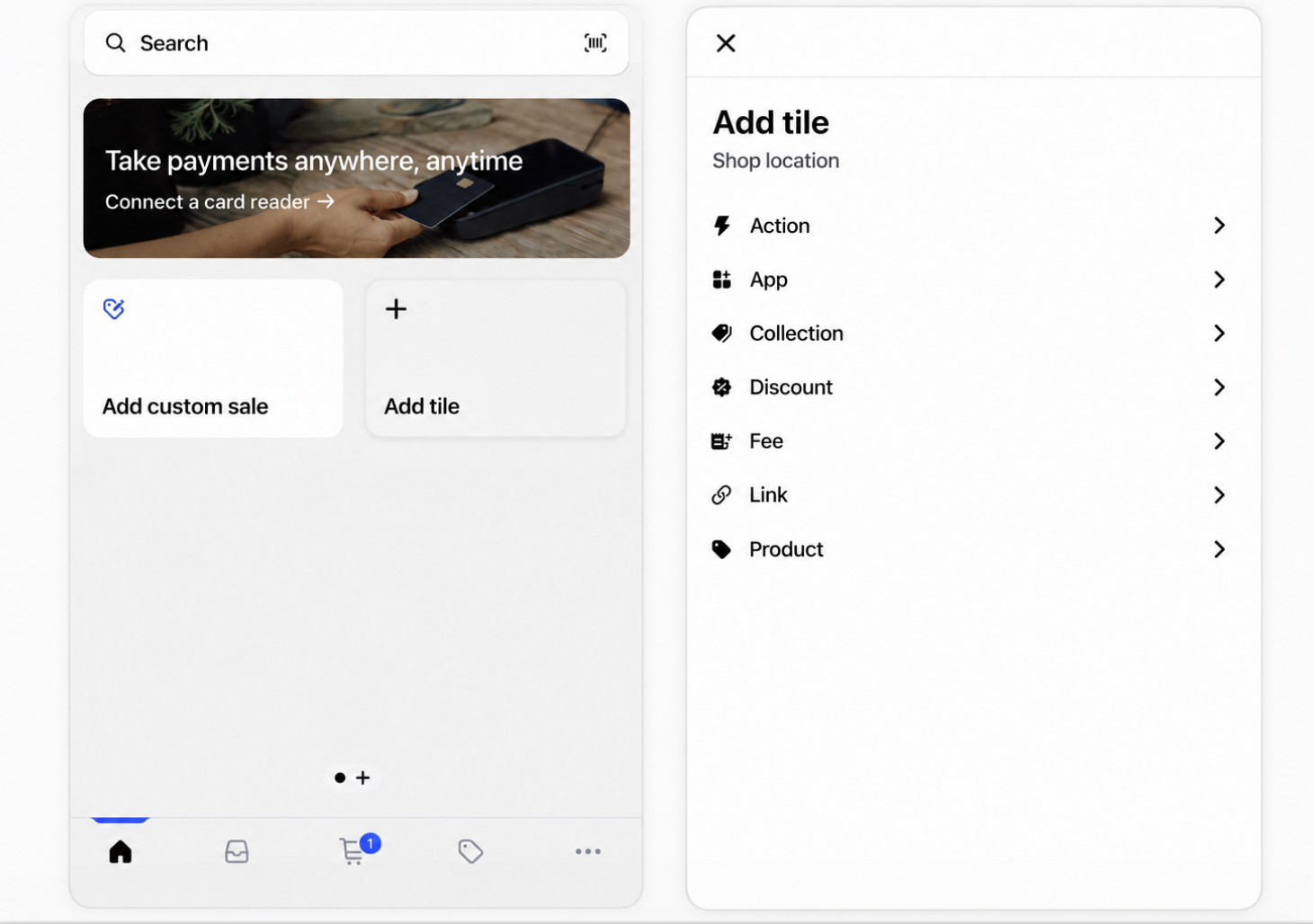
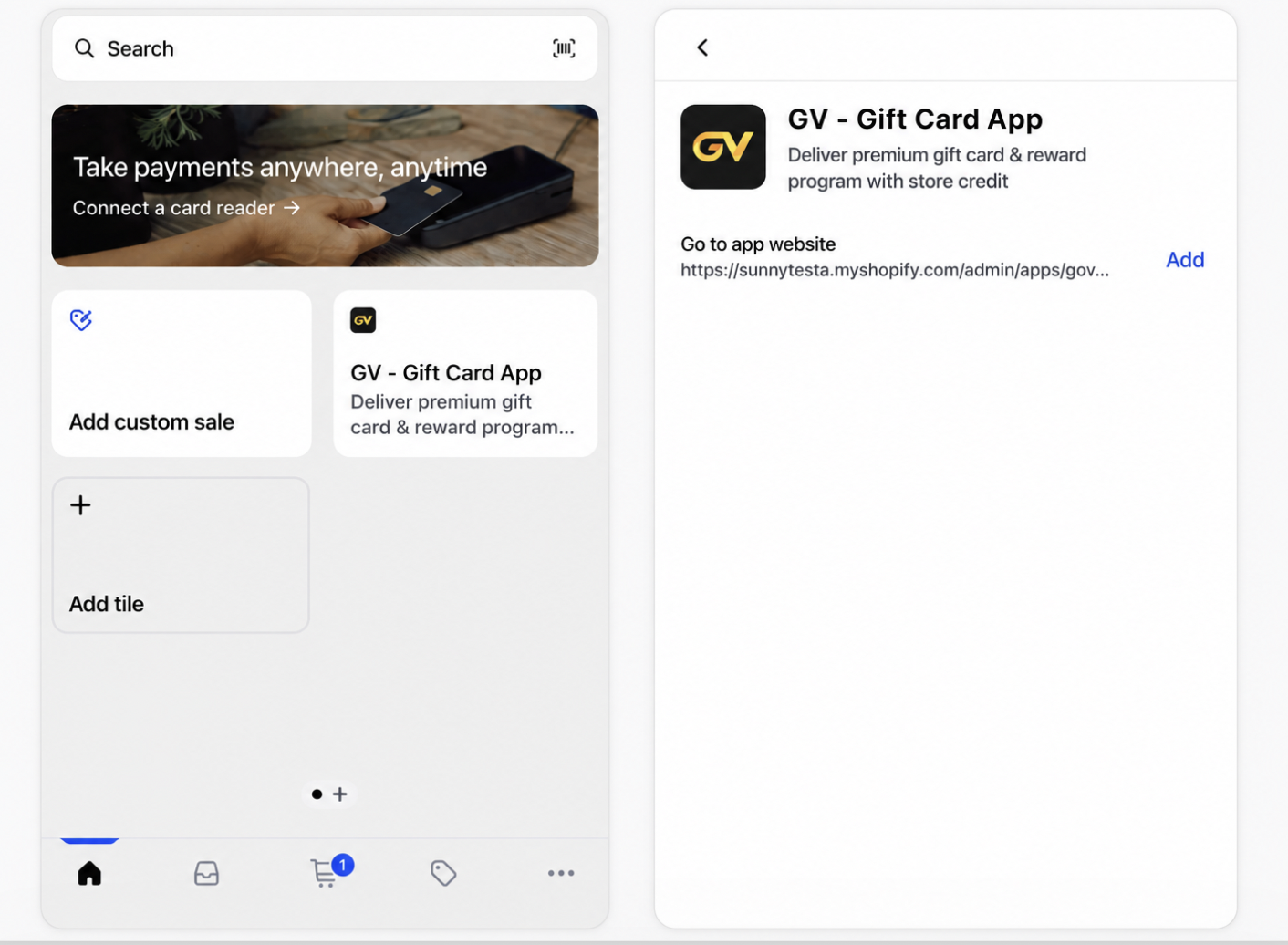
After setup, GV can be accessed directly from the POS home screen.
What you can do with GV on Shopify POS
Once integrated, your staff can:
1. Sell gift cards in-store
Customers can purchase gift cards directly at your physical store using Shopify POS.
2. Redeem store credit at checkout
Customers can use their store credit when completing purchases in-store.
3. Access GV from POS
Staff can open GV directly from the POS interface to manage gift cards and store credit.
Network and firewall requirements
Setting up your network ensures that both Shopify POS and connected hardware work reliably. A stable, properly configured network helps prevent disruptions during sales, keeps your payment hardware connected, and allows Shopify POS data to sync with your Shopify admin. Review these requirements and tips to help your store operate smoothly in person.
If you are unsure about your network setup, contact your IT administrator.
Troubleshooting
1. GV does not appear in Shopify POS
* Make sure GV has been added as an app tile
* Check that the correct POS device is being used
* Restart the Shopify POS app
2. Gift card or store credit is not available
* Verify that gift cards are enabled in Shopify POS settings
* Confirm store credit is enabled for customer accounts
* Ensure the customer is selected at checkout (for store credit)
3. POS cannot connect or sync data
* Check your internet connection
* Review network/firewall settings
* Try switching to another network (e.g., mobile hotspot)
Was this article helpful?
That’s Great!
Thank you for your feedback
Sorry! We couldn't be helpful
Thank you for your feedback
Feedback sent
We appreciate your effort and will try to fix the article
