The Follow on X program allows merchants to reward customers with store credit when they visit the store’s X (Twitter) profile. This is a simple way to increase social media visibility and encourage customers to connect with your brand.
This feature is available on the Premium plan and is not accessible for stores using the Free plan.
Feature Location
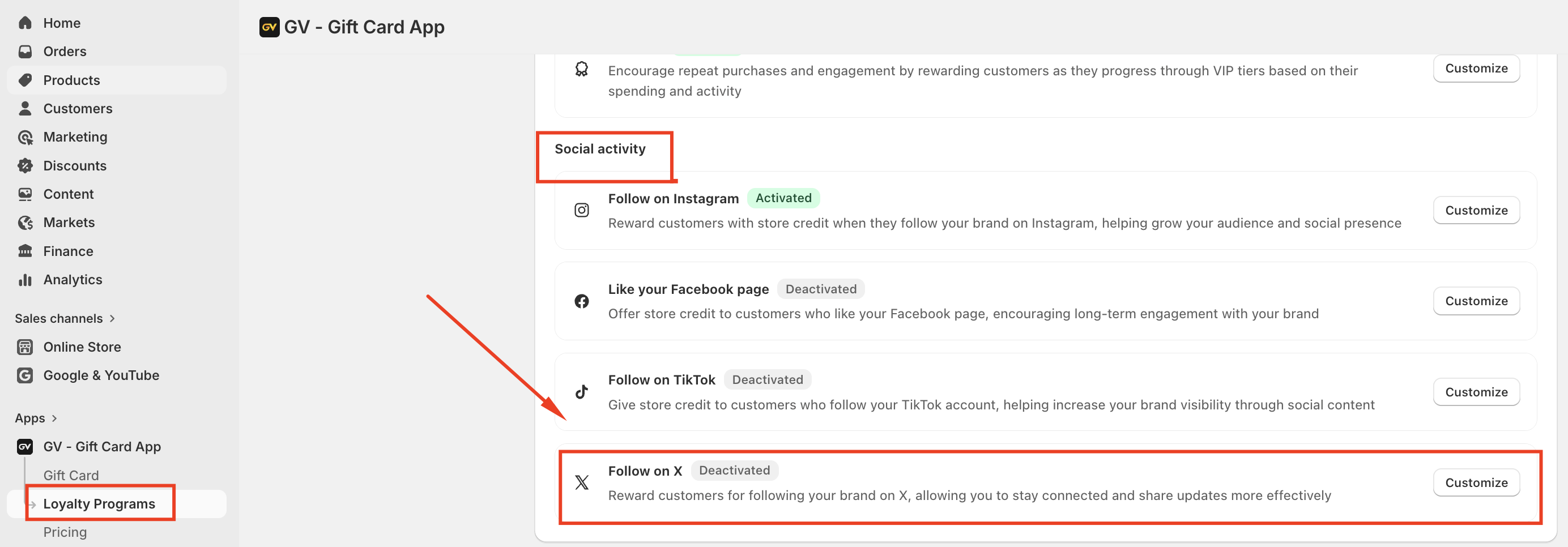
To configure this program, navigate to:
Loyalty Program → Loyalty Program → Social Activity → Follow on X
From this page, you can enable the program and customize the reward settings.
Enable or Disable the Program
The program is disabled by default.
To activate it:
Go to Loyalty Program → Loyalty Program → Social Activity
Select Follow on X
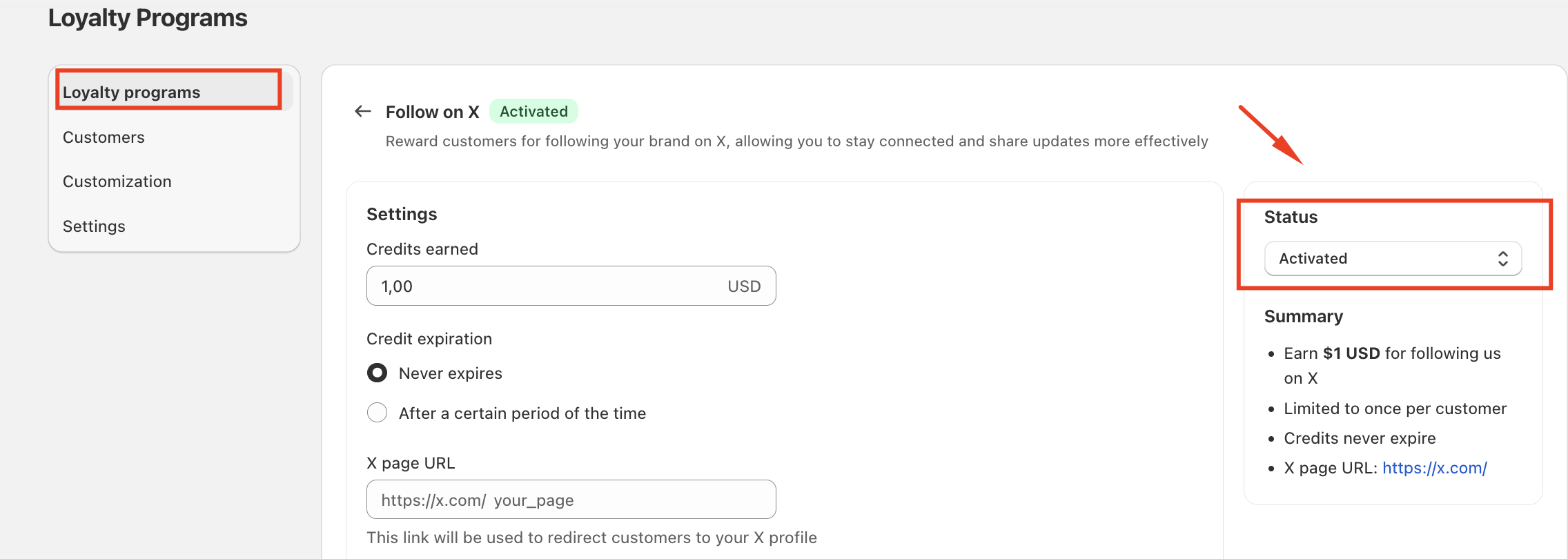
Toggle the Activate / Deactivate option
Once enabled, the program can be displayed to customers in the loyalty widget.
Program Settings
After enabling the program, you can configure the following options.
Credits Earned
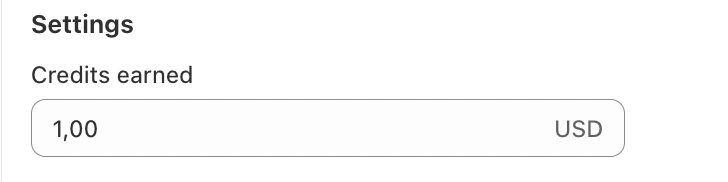
Specify the amount of store credit customers will receive when they participate in this program.
Enter a value based on your store currency
The credit is issued as a fixed amount
Default value: $1
Example:
If you enter 5, customers will receive $5 in store credit after participating.
Credit Expiration
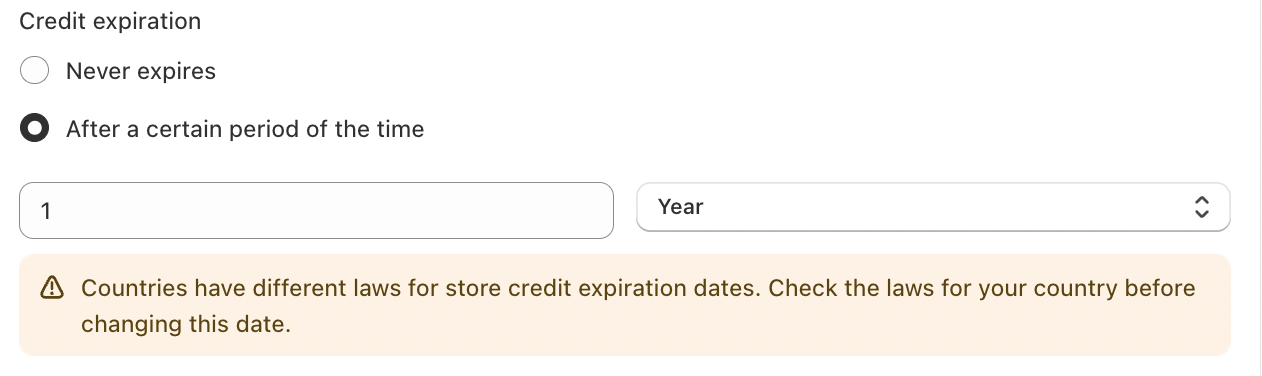
You can control how long the earned credit remains valid.
Available options:
Never expire (Default)
Credits remain valid indefinitely.
Expire after a certain period
Credits expire after a specific duration that you define.
You can set the expiration in:
Days
Months
Years
X Profile Link
Enter your store’s X profile link.
This field is required for the program to work, as customers will be redirected to this page when clicking the reward action.
Example:
https://x.com/your_store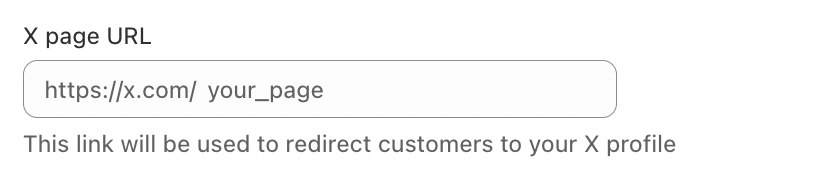
Credit Note (Optional)
You may add an optional internal note for the credit transaction.
This note will appear in the customer's credit history record.
Customize How the Program Appears in the Launcher
You can customize how the Follow on X reward appears to customers in the loyalty widget.
Navigate to:
Loyalty Program → Customization → Launcher
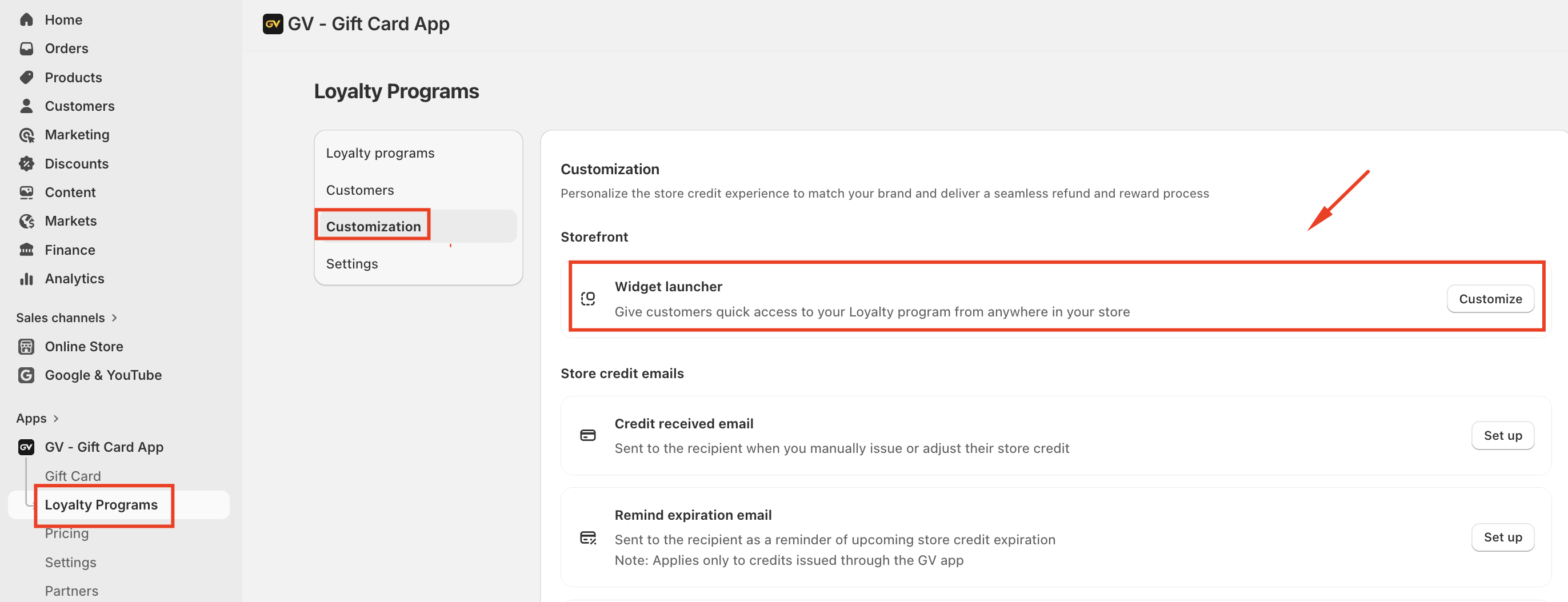
Steps:
Go to Program & Rewards
Select Follow on X
Customize the content displayed to customers
Click the Preview icon (eye icon) to see how it appears in the storefront widget
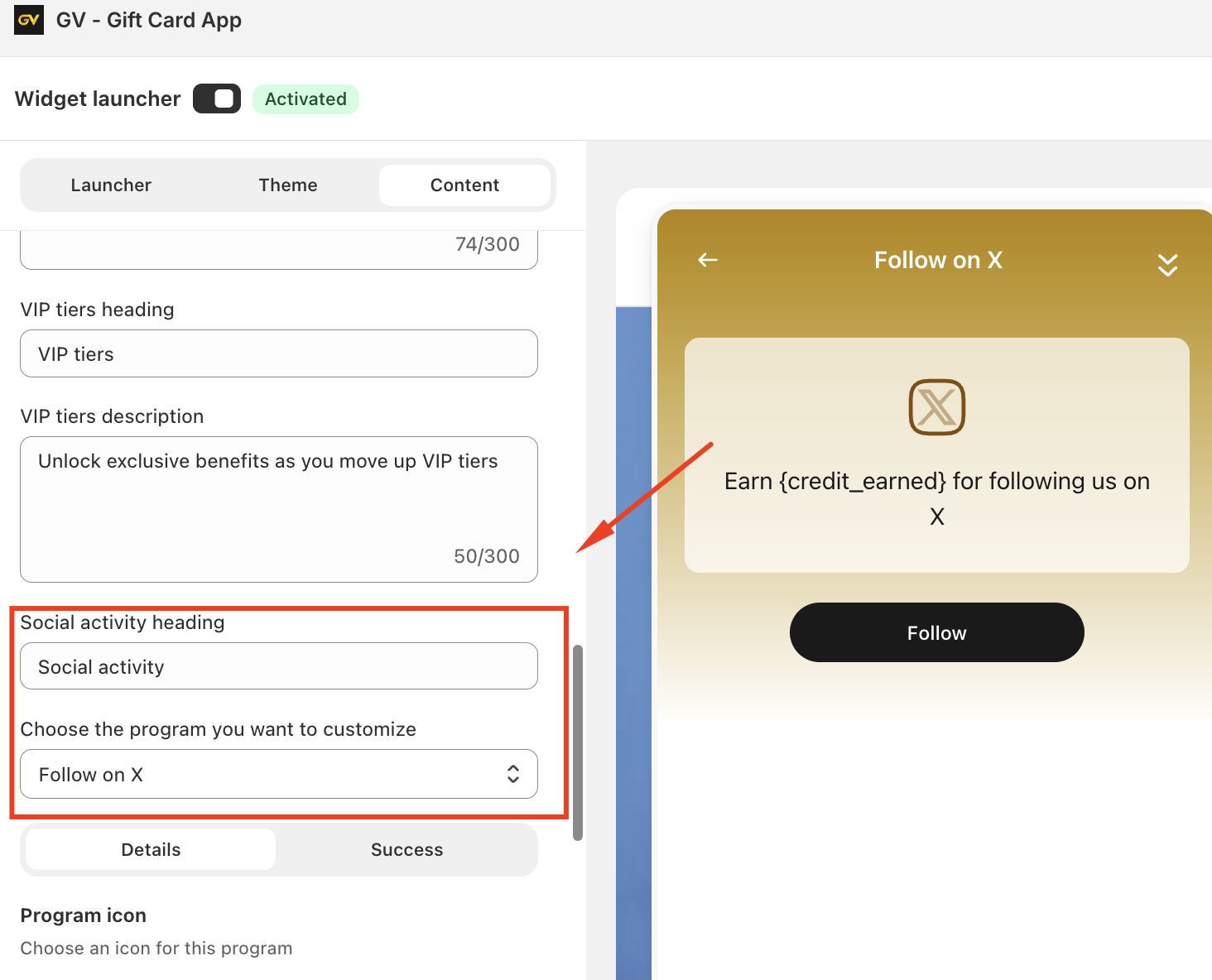
This allows you to adjust the wording and presentation of the reward program.
Customer Credit Flow
Below is the typical process when a customer participates in the Follow on X program.
1. Program Activation
The merchant enables the Follow on X program.
2. Program Display
The reward appears in the Loyalty Launcher on the storefront.
3. Customer Login
Customers must log in to their account to participate in the program.
4. Redirect to X
When the customer clicks the X icon, they will be redirected to the store’s X profile.
5. Credit Verification
The system checks whether the customer has already received credit for this program.
If the customer has not earned credit before, store credit will be issued.
Each customer can earn this reward only once per account.
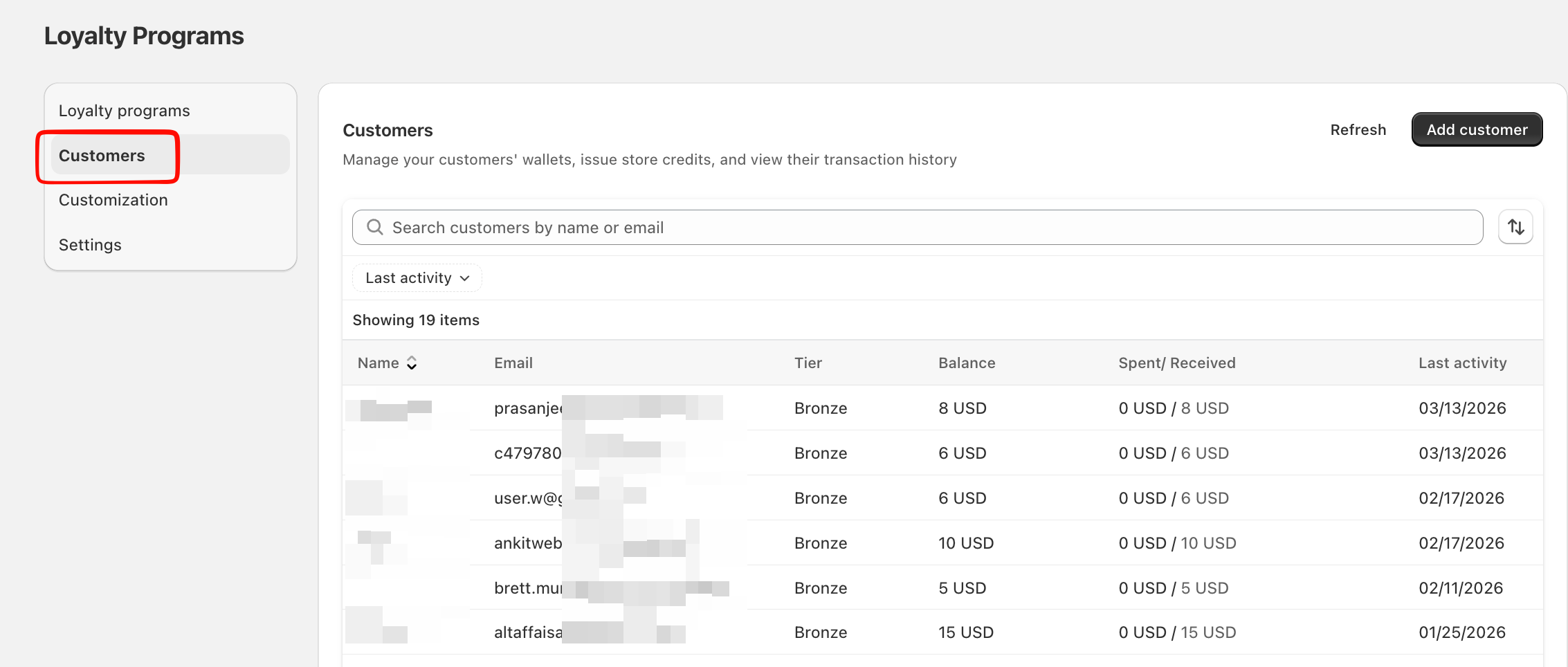
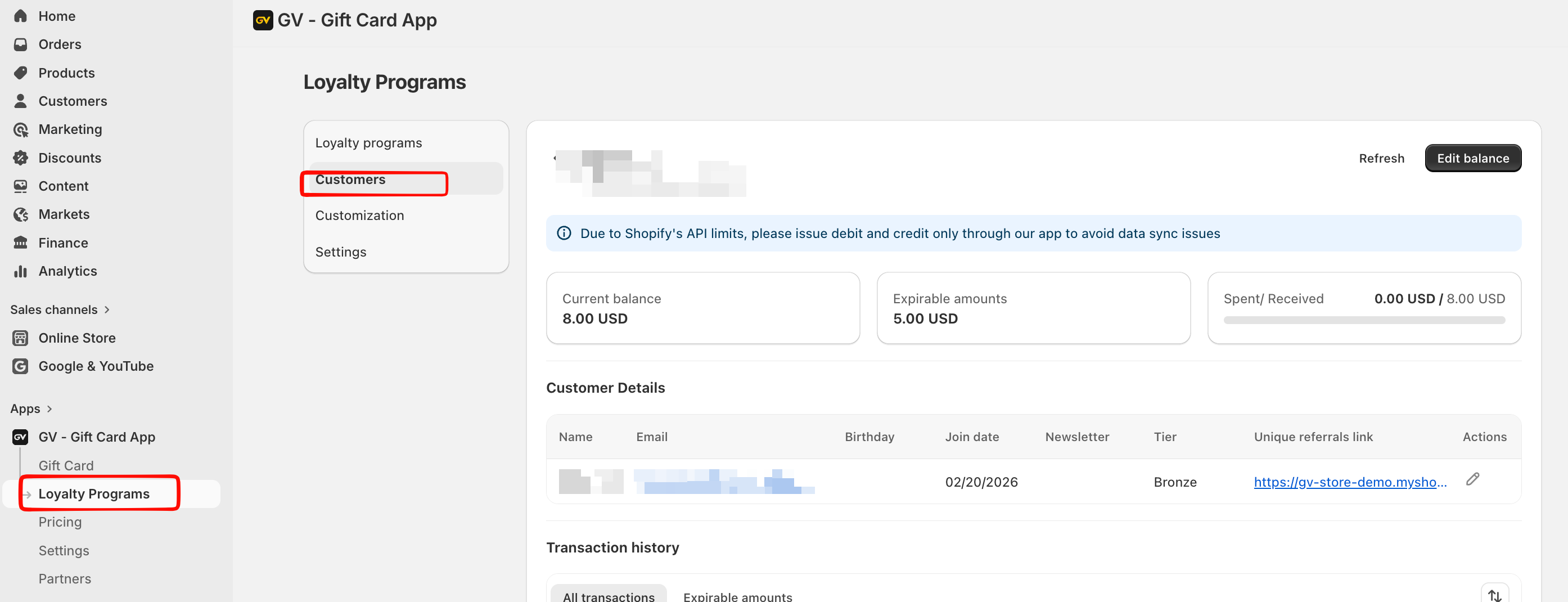
Earn History Record
When credit is issued, a record will appear in the customer's Earn History, including the following details:
Date – The date the customer participated in the program
Type – Received
Event – Adjustment
Origin – X
Amount – Credits earned
Balance – Remaining credit balance
Expired Date – Based on the expiration settings
Internal Note – The note entered in the program settings (if provided)
Customer Notification
After the credit is successfully issued, the system automatically sends a Credit Received Email to notify the customer.
Important Note
The app only redirects customers to your X profile page.
It cannot verify whether the customer actually followed your account.
Should you have any further concerns, please feel free to contact us at support@govalos.com.
Was this article helpful?
That’s Great!
Thank you for your feedback
Sorry! We couldn't be helpful
Thank you for your feedback
Feedback sent
We appreciate your effort and will try to fix the article