To issue a gift card from the app, follow the steps below:
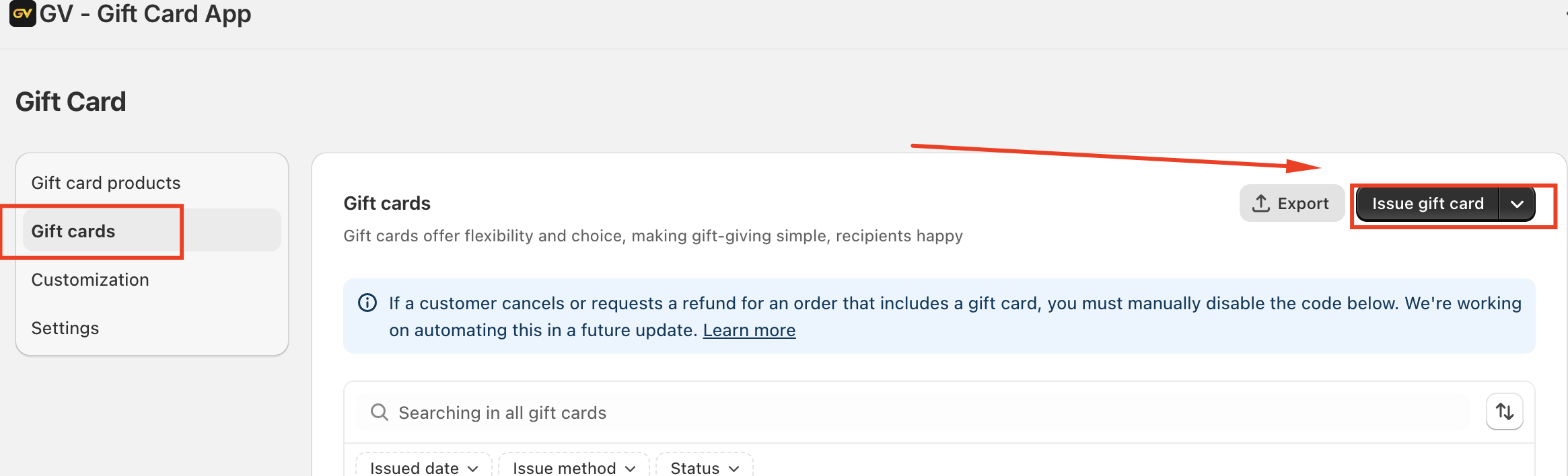
Step 1: In the Govalo app, go to the Gift cards dashboard and click Issue a gift card:
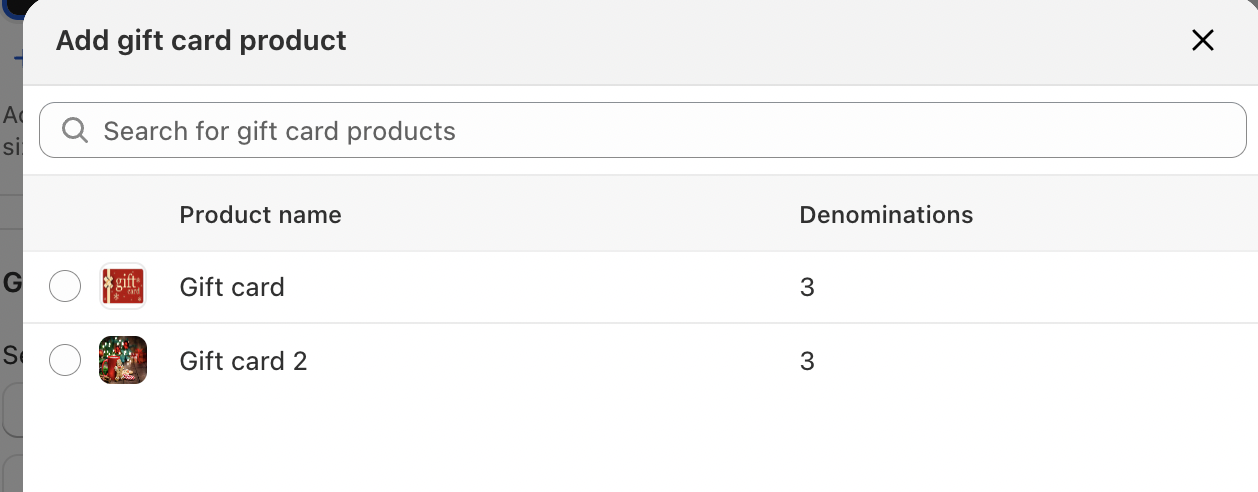
Step 2: In the popup that opens, select the gift card product you wish to use when issuing the new gift card:
Step 3: Fill out the form and, when finished, click Save.
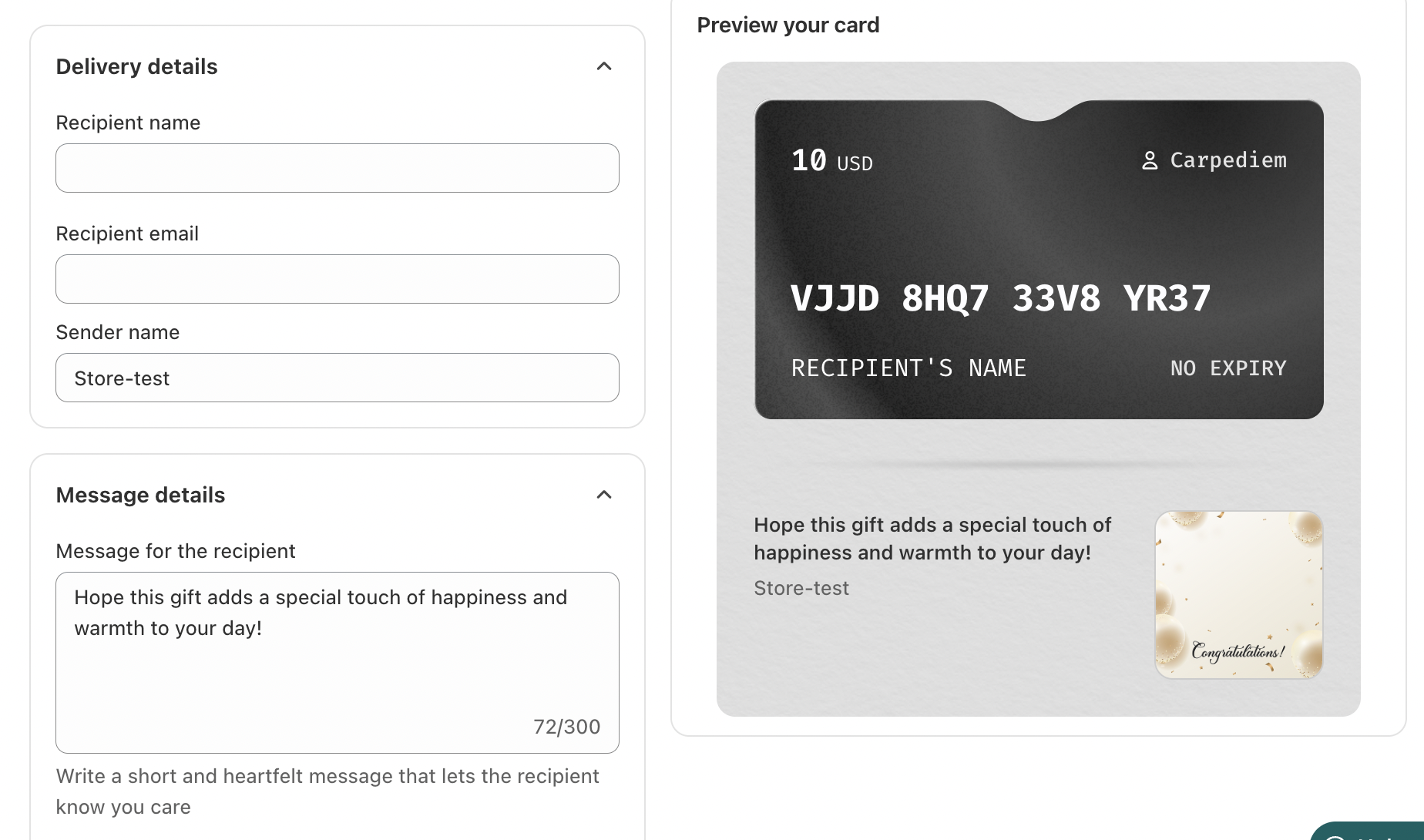
Fill the First name, Last name and Email fields with the recipient's details
For immediate delivery, leave the Delivery date set as of today
If your gift card product has multiple images, use the arrows under the image to select the one to be sent with the gift card issued
To issue cards in bulk through the Import via CSV option, see How to issue multiple Gift Cards in bulk
You can find the gift card issued in the Active gift cards in the Gift cards dashboard:

Should you have any further concerns, please feel free to contact us via email at support@govalos.com
Was this article helpful?
That’s Great!
Thank you for your feedback
Sorry! We couldn't be helpful
Thank you for your feedback
Feedback sent
We appreciate your effort and will try to fix the article