A well-designed gift card experience helps customers start their purchase journey smoothly—boosting sales, conversions, and referrals. Customizing your gift card ensures it aligns perfectly with your store’s branding and theme.
Follow the steps below to customize your gift card button and appearance.
________________________________________________________________________________________________
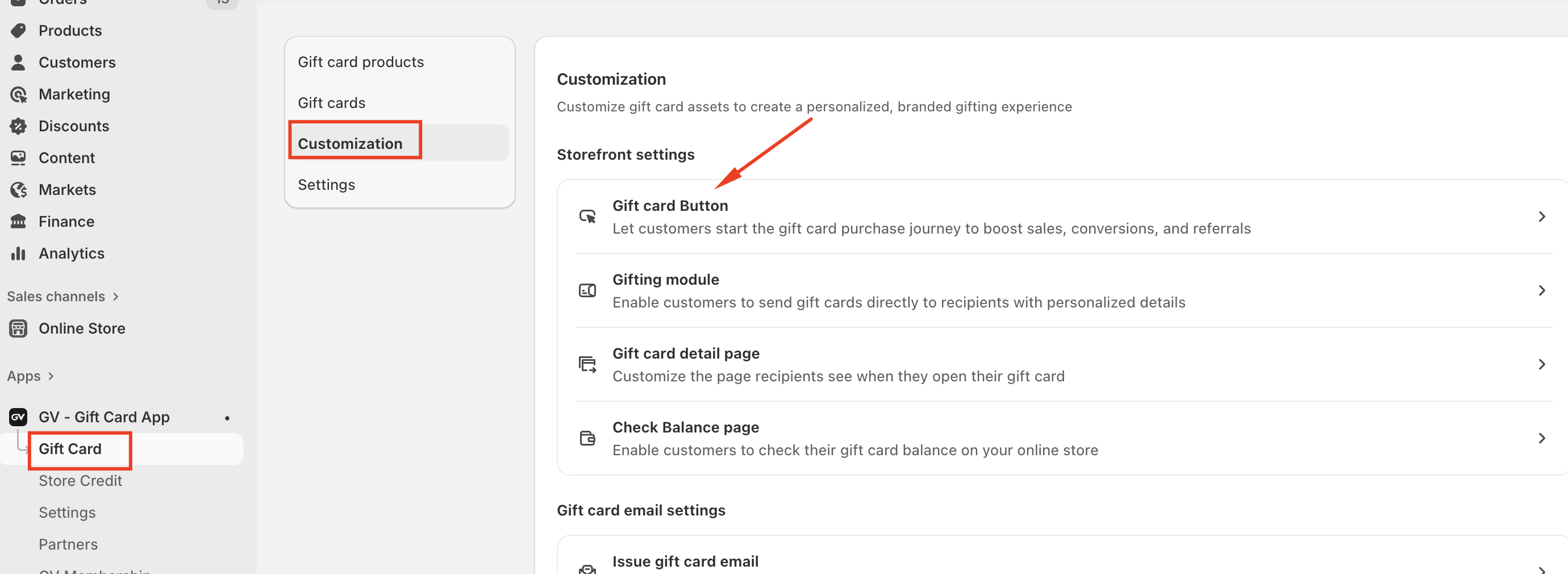
Access Gift Card Customization
To begin customizing your gift card:
Go to Gift Card in your admin panel
Click Customization
Open the Gift Card Button settings
This section allows you to fully control the button style, text, and colors.
______________________________________________________________________________________________________
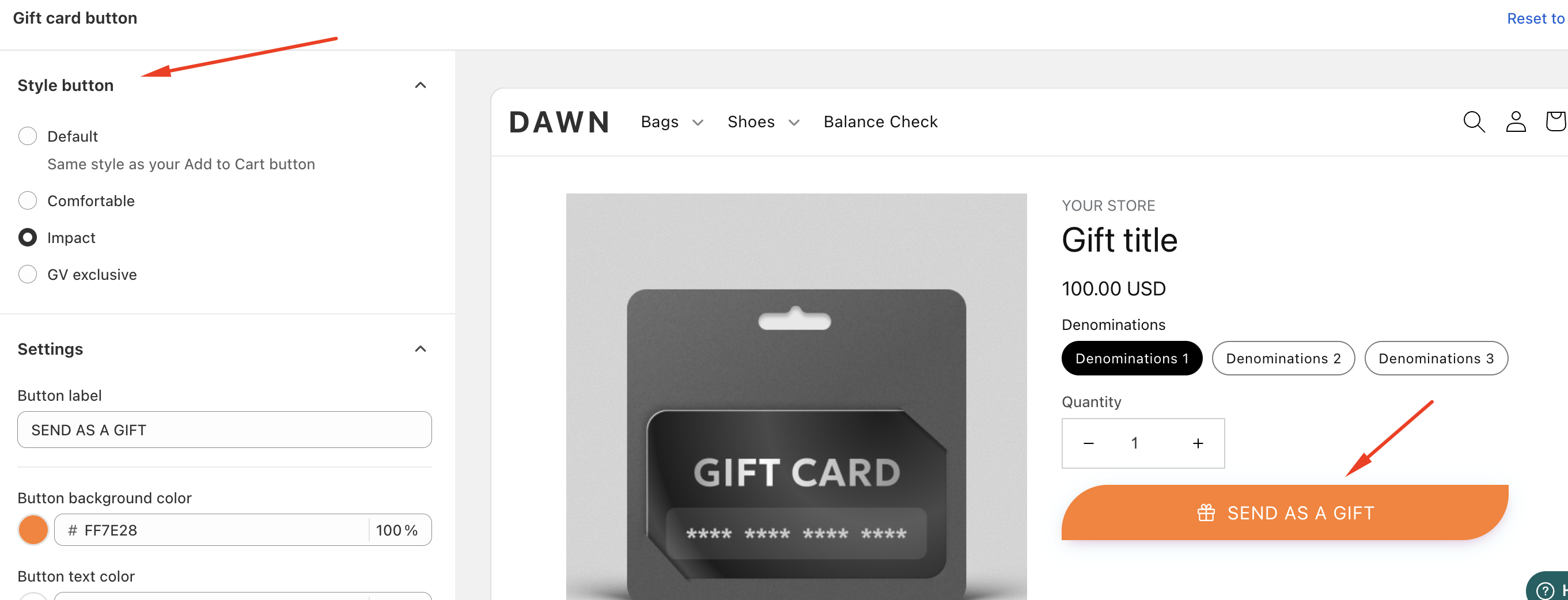
Choose a Button Style
Currently, there are four button styles available.
You can switch between each style and select the one that best matches your store’s design and layout.
This flexibility allows your gift card button to blend seamlessly with your theme.
______________________________________________________________________________________________________
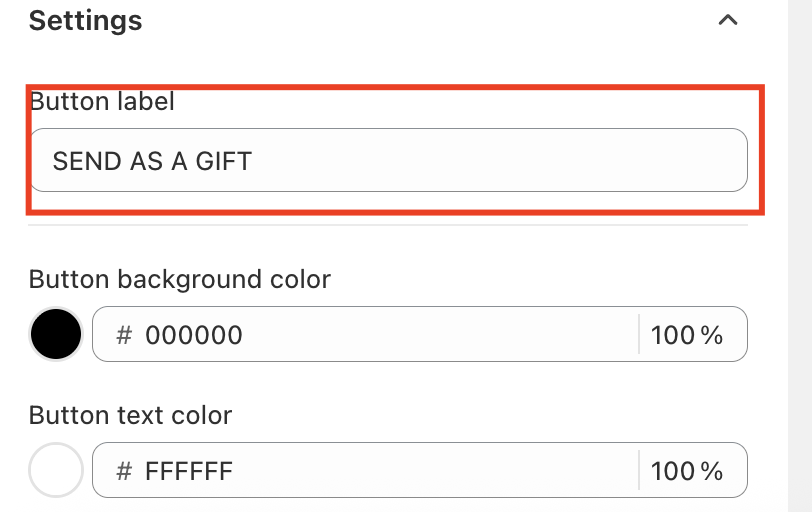
Customize Button Text
You can personalize the button text to better match your brand voice.
For example, you may use:
“Send Gift”
“Buy a Gift Card”
Any custom wording that fits your store
This helps create a more engaging and branded shopping experience.
______________________________________________________________________________________________________
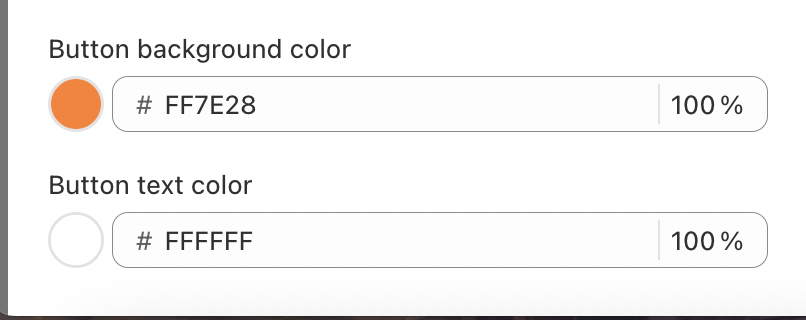
Set Text and Background Colors
To ensure visual consistency with your theme, you can:
Adjust the text color
Set the background color of the gift card button
Choose colors that complement your store’s design and improve visibility
In case you have any further concerns, please feel free to drop us an email at support@govalos.com
Was this article helpful?
That’s Great!
Thank you for your feedback
Sorry! We couldn't be helpful
Thank you for your feedback
Feedback sent
We appreciate your effort and will try to fix the article